
Can Your iPad Replace Your Laptop?

Since the iPad was introduced in 2010 (yes — it’s really been 16 years), people have been trying to use it as a laptop replacement.
In the early days, that was… ambitious.
There was no real windowing system. No proper file management. No mouse or trackpad support. No dedicated operating system. The original iPad was essentially a large iPhone. Many apps were simply stretched iPhone apps — and some stayed that way for years (looking at you, Instagram).
Despite those limitations, people tried.
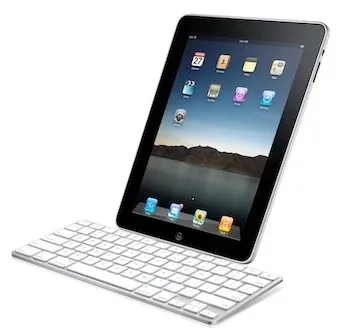
Apple even offered a keyboard dock — a plastic keyboard with a 30-pin connector that made your iPad look like it was awkwardly docked to an iMac accessory. If you don’t remember the 30-pin connector, ask your parents.
Fast forward to today, and the iPad is a completely different device.

The Evolution of iPadOS
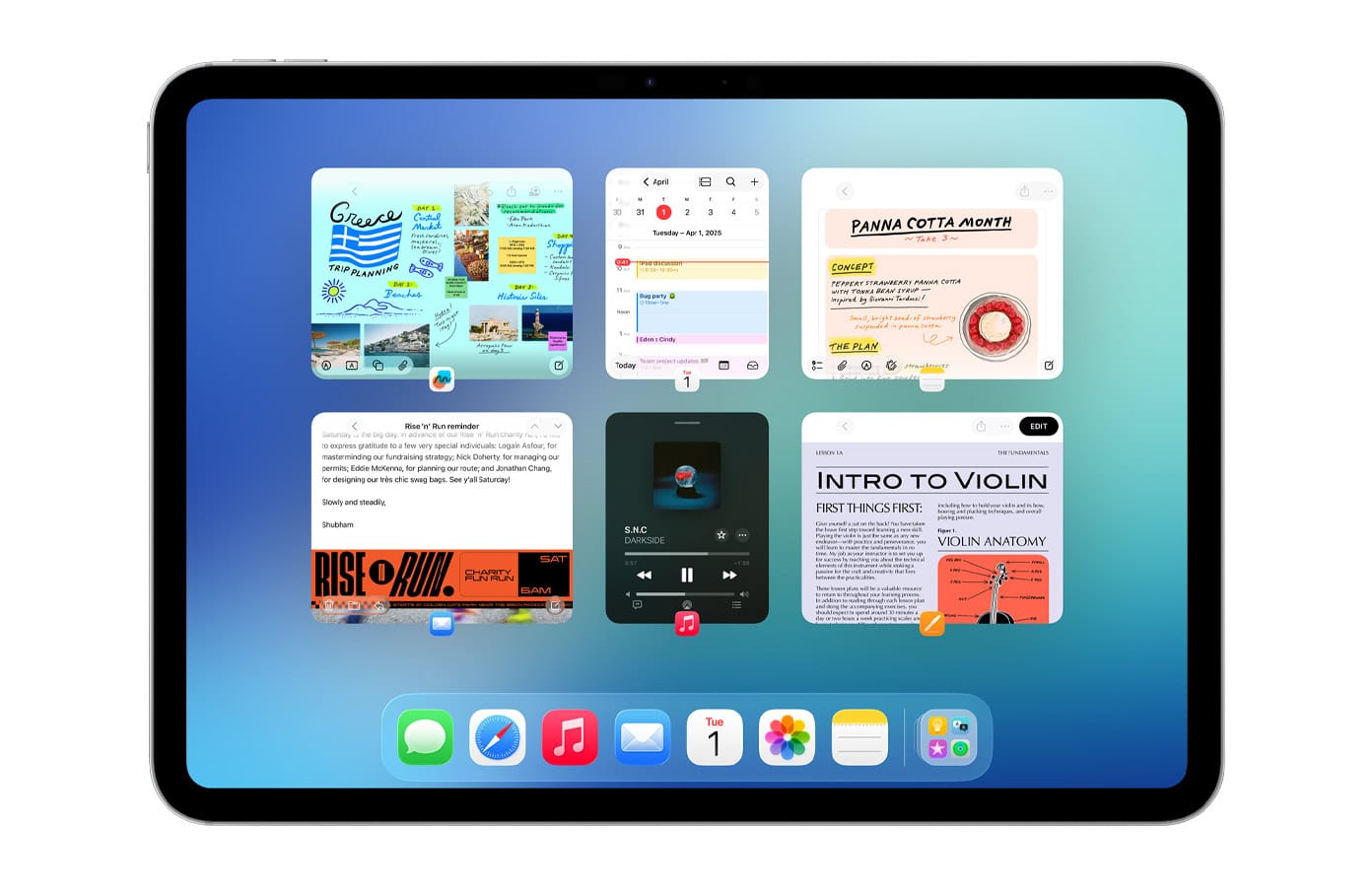
Over the years, the iPad evolved from a consumption device into something much closer to a traditional computer.
iPadOS now includes:
- Real window management
- A file browser
- Desktop-class Safari
- Keyboard shortcuts
- External monitor support
- Widgets and customizable Home Screens
- Full mouse and trackpad support
And in September 2025, iPadOS 26 brought the most desktop-like features yet.
The biggest change? A true windowing system.
You can now:
- Resize windows by dragging edges
- Position them freely
- Use familiar red, yellow, and green traffic-light controls
- Access menu bars inside apps
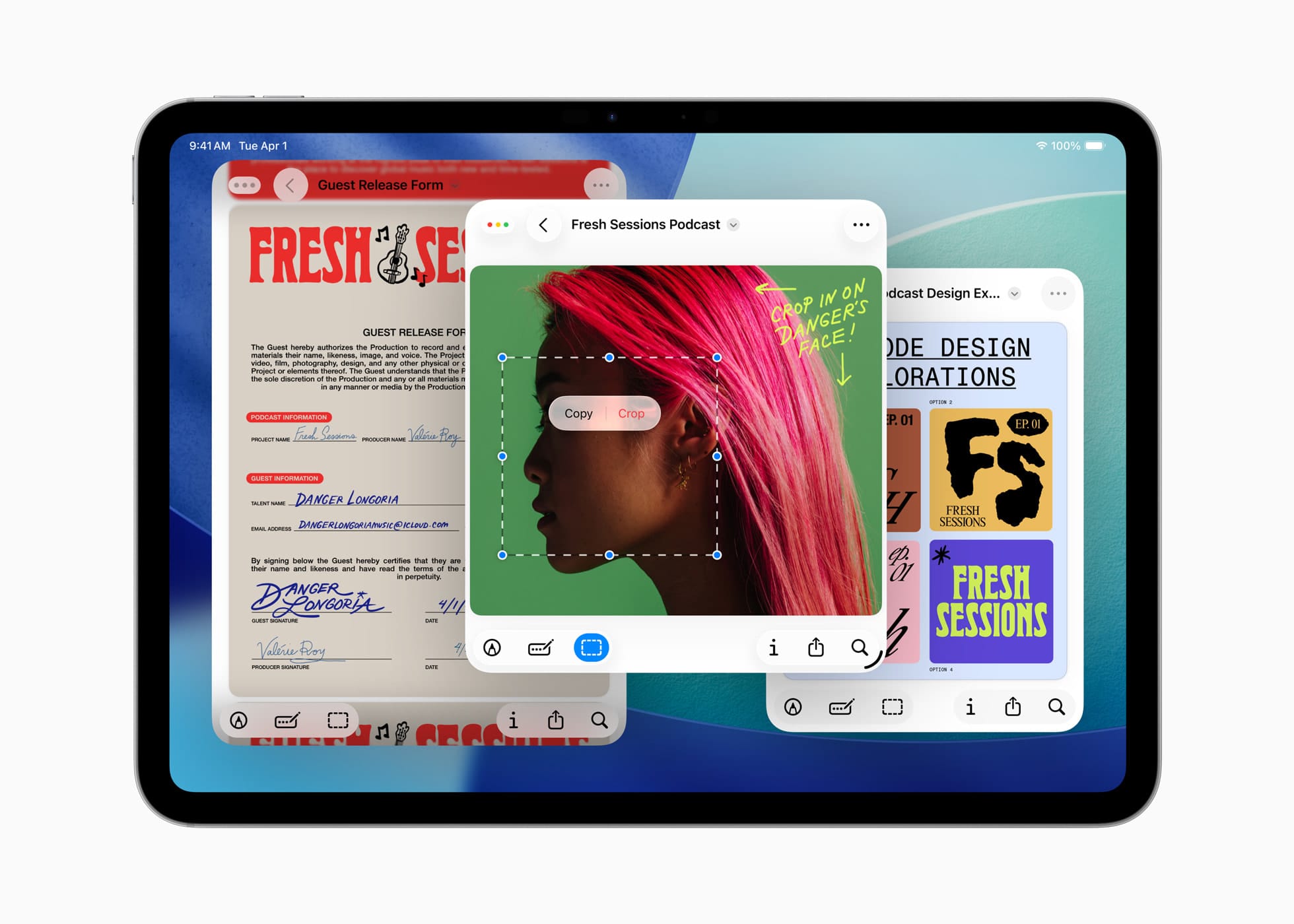
Apple also brought the Preview app to iPad — previously Mac-only — making PDF viewing and editing far more capable.
This was a big step.
So the real question is:
Can It Actually Replace a Laptop?

For most people?
Yes.
Is it perfect? No.
Even with improved multitasking, it’s still not quite as robust as macOS or Windows for heavy workflows. But the majority of users don’t need heavy workflows.
If your computer use looks like this:
- Web browsing
- Social media
- Watching videos
- Document editing
- Light photo or video editing
- Online banking
- Schoolwork
An iPad can absolutely handle it.
And it offers some advantages over traditional laptops.
- Instant on
- Excellent battery life
- Touchscreen + Apple Pencil support
- Strong sandboxed security model — which protects your device from potentially malicious apps
- Lightweight and portable
- Simple, intuitive interface
Unlike the early days — when using an iPad meant changing your workflow — today’s iPad can adapt to you.
Where the iPad Still Struggles

The iPad isn’t ideal for:
- 3D modeling
- Advanced video production
- Software development
- Large-scale data workflows
Yes, you can do some of those things. But if that’s your primary work, a Mac or Windows machine is still the better tool.
Screen Size and Cost Considerations
Before replacing your laptop, consider two big factors:
1. Screen Size
iPads range from 8 inches to 13 inches.
Laptops can go much larger — and often feel less cramped when using multiple windows.
If you’re used to a 15- or 16-inch laptop, an 11-inch iPad may feel tight.
You can connect your iPad to an external display using a USB-C to HDMI adapter, which helps create a more desktop-like setup.
However, that’s less useful when traveling unless you carry a portable monitor or have access to one where you’re working.
2. Price
iPads start at $349 and go up to $2,399 for a fully loaded iPad Pro (before accessories).
But remember:
The keyboard is extra, and Apple’s keyboard cases range from $249–$349.
Add a Pencil? That’s another $79–$129.
At that point, your “cheap tablet” may cost as much as a laptop.
Compared to:
- A MacBook → pricing is similar
- A Windows laptop or Chromebook → iPad is often more expensive
You’re paying for portability, build quality, battery life, and Apple’s ecosystem.
The $599 Laptop Alternative: MacBook Neo
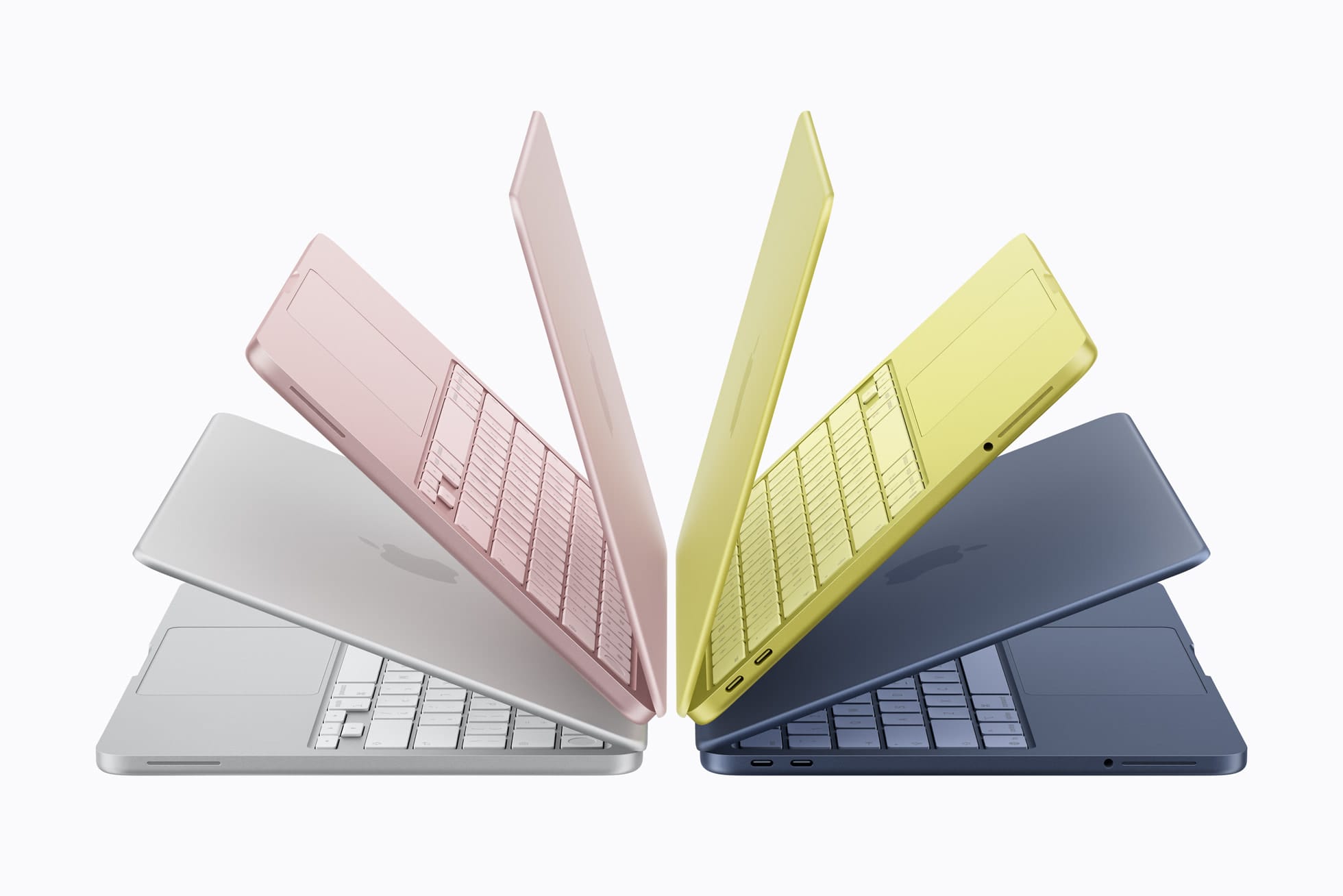
Another new option to consider is the entry-level MacBook Neo from Apple, which starts at $599.
That price puts it surprisingly close to the cost of many iPad setups — especially once you add a keyboard case.
The MacBook Neo offers a traditional laptop experience with macOS, meaning:
- Full desktop applications
- More flexible multitasking
- Better support for professional workflows
However, the iPad still has some unique advantages:
- Touchscreen and Apple Pencil support
- Tablet flexibility (it can function as both a tablet and a computer)
- Instant-on responsiveness
- Excellent battery life
- A more simplified, app-focused interface
In other words:
If you want a traditional laptop experience at the lowest price, the MacBook Neo may make more sense.
If you want the flexibility of a tablet that can also function like a computer, the iPad still offers something a laptop can’t.
Which iPad Should You Get?
Let’s break it down.
iPad (Base Model) – $349
Best for:
- Casual users
- Students
- Light productivity
Great value. Handles everyday tasks easily.
Limitations:
- Single screen size (11-inch)
- Uses an A-series chip (less powerful than M-series)
- Limited support for Apple Intelligence features
For most people, it’s enough.
iPad Mini – $499
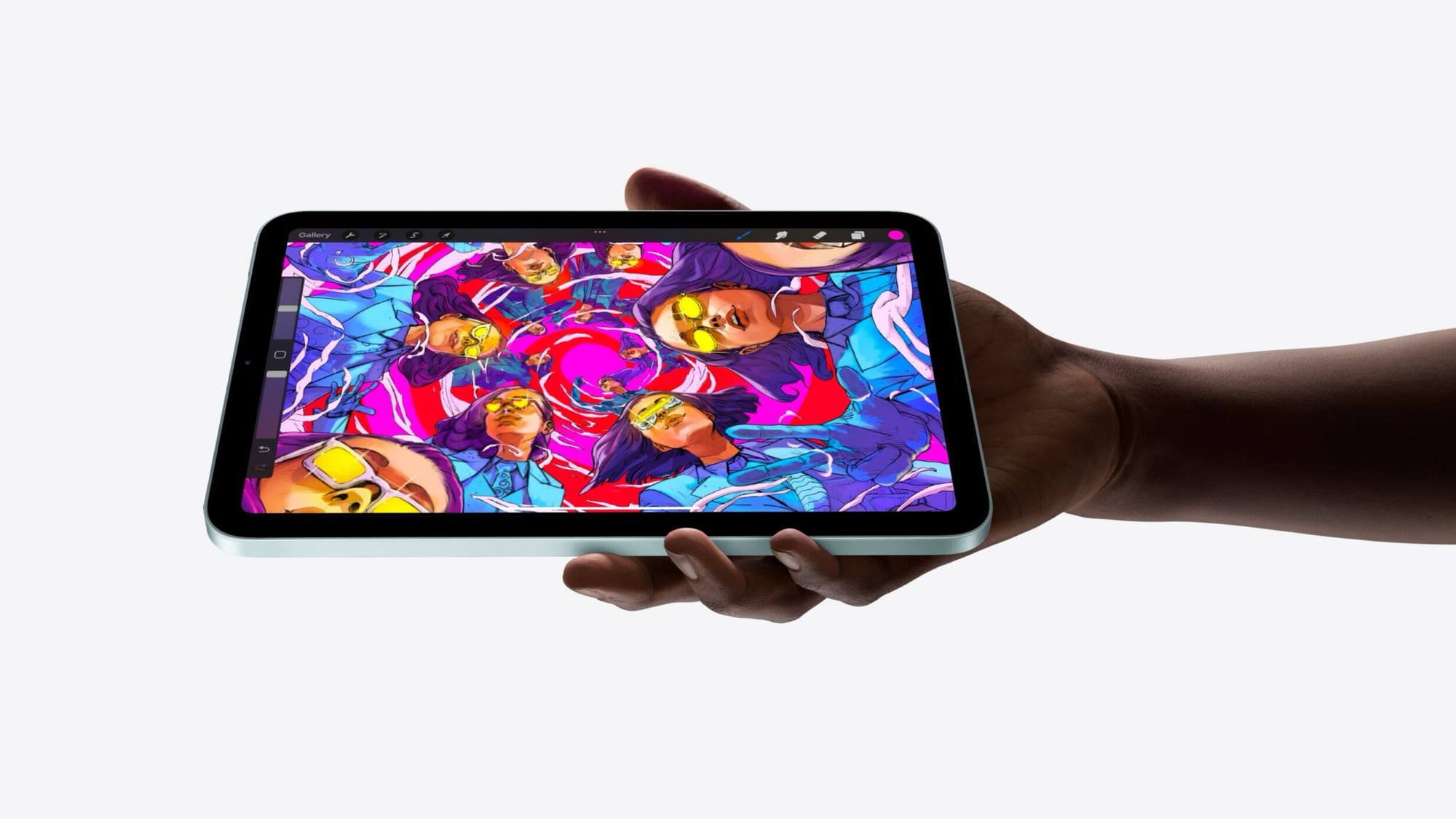
The most portable option.
Pros:
- Powerful for its size
- Supports Apple Intelligence
Cons:
- 8-inch screen is small for productivity
- No official Apple keyboard case
Great secondary device. Tough sell as a primary computer.
iPad Air – $599–$799
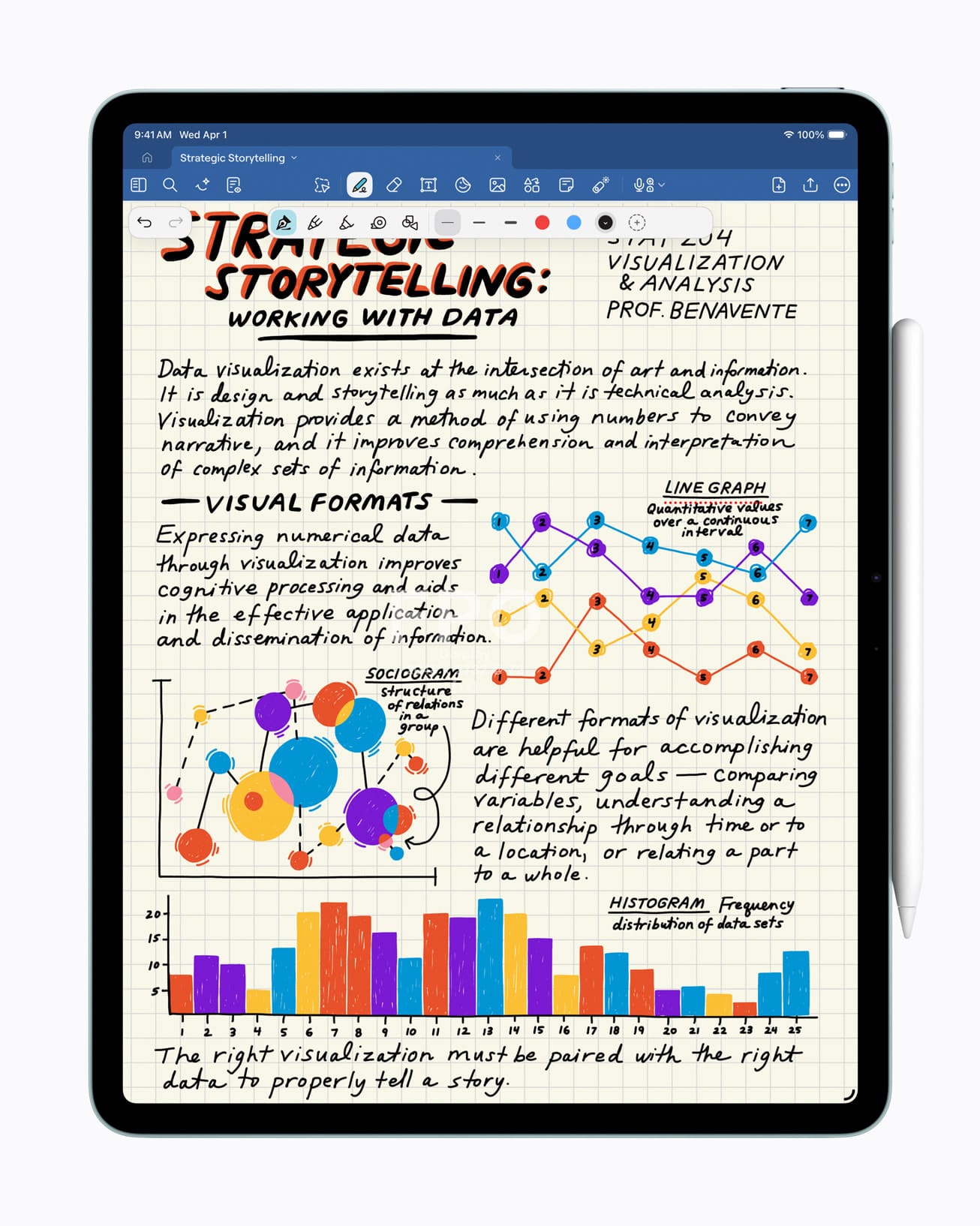
The sweet spot.
- M-series chip (same architecture as Macs)
- Available in 11-inch and 13-inch
- Strong performance
- Reasonably priced
Tradeoffs:
- LCD display (not as advanced as Pro)
- Touch ID instead of Face ID
For most serious “laptop replacement” users, this is the best balance.
iPad Pro – $999+
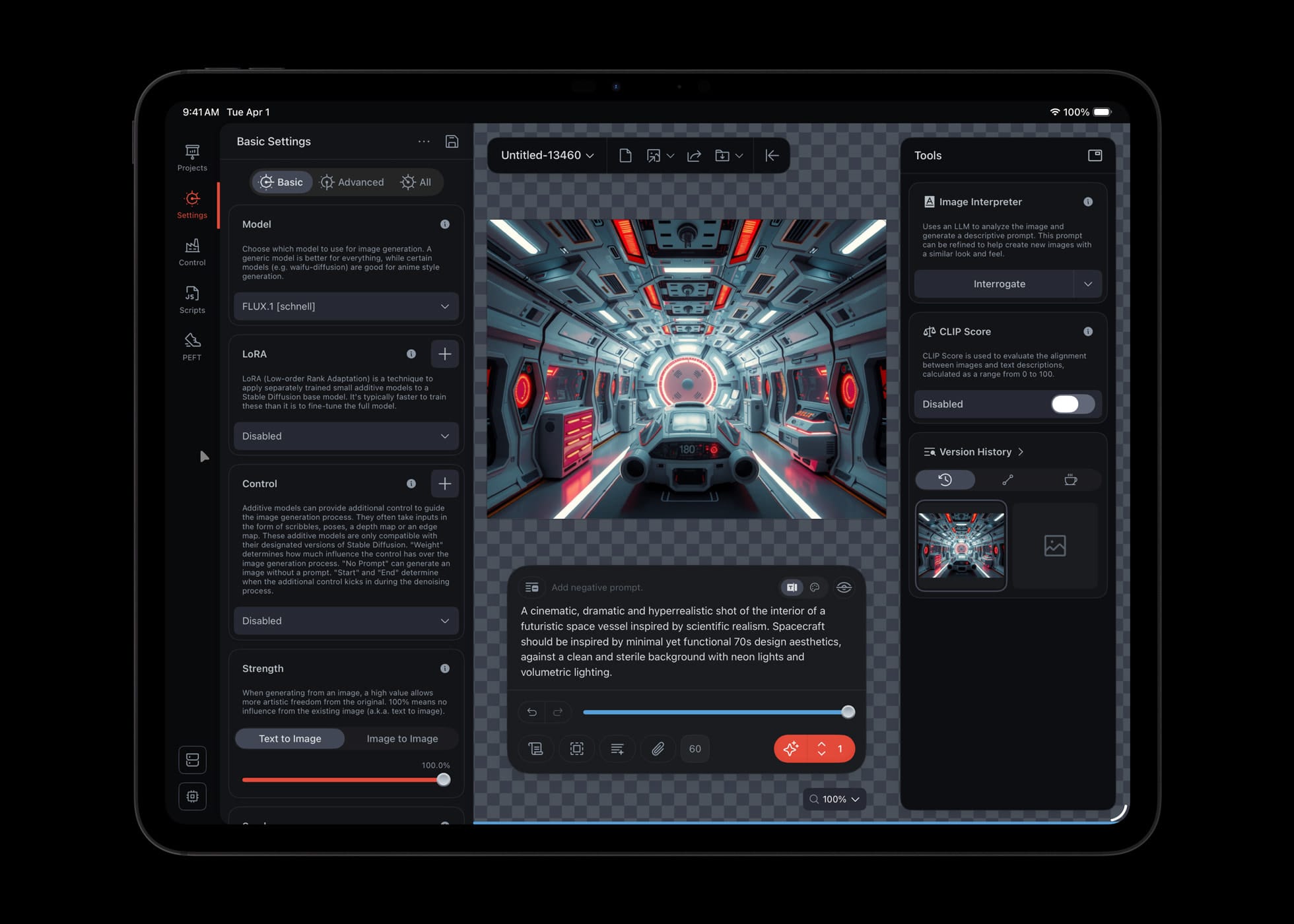
For power users and creatives.
- Best display
- Face ID
- Fastest processor
- Thunderbolt support
If you’re editing video, designing graphics, or just want the best — this is it.
For average users? It’s probably overkill.
Quick Picks
💰 Best Budget Option: iPad
⚖️ Best Balance: iPad Air (11-inch)
🖥 Best Large Screen Value: iPad Air (13-inch)
🚀 Best Performance: iPad Pro
📱 Most Portable: iPad Mini
Should You Buy Refurbished?
Absolutely worth considering.
Example (at the time of publication):
An M2 iPad Air (13-inch, 128GB) might cost $639 refurbished versus $799 for the newest model.
Apple’s refurbished products are excellent — and often the best value.
Accessories: Do You Need Them?
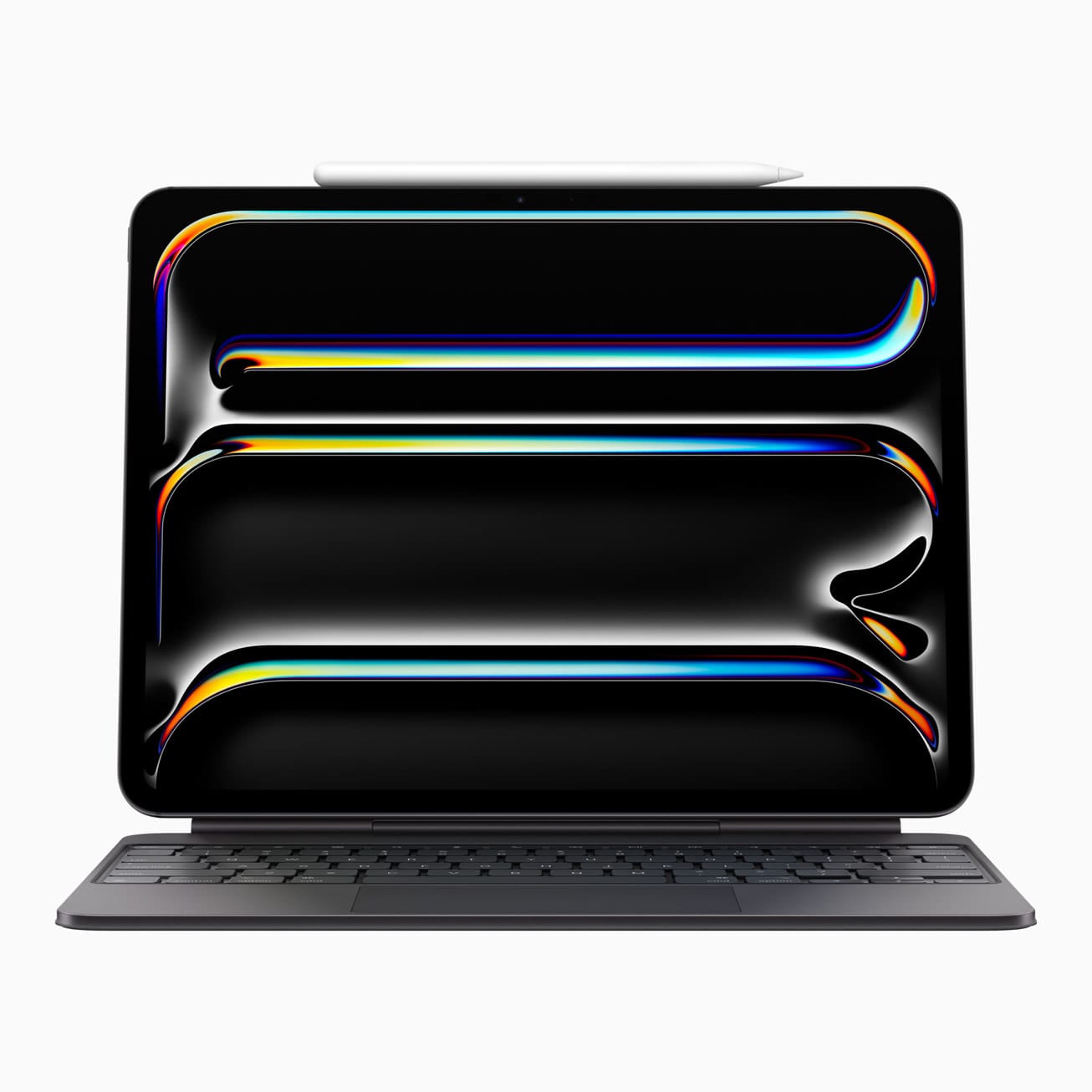
Keyboard Case
Not required — but highly recommended.
Third-party options (Logitech, ESR) can save money versus Apple’s Magic Keyboard.
If you want a laptop-like experience, this is the accessory that makes it happen.
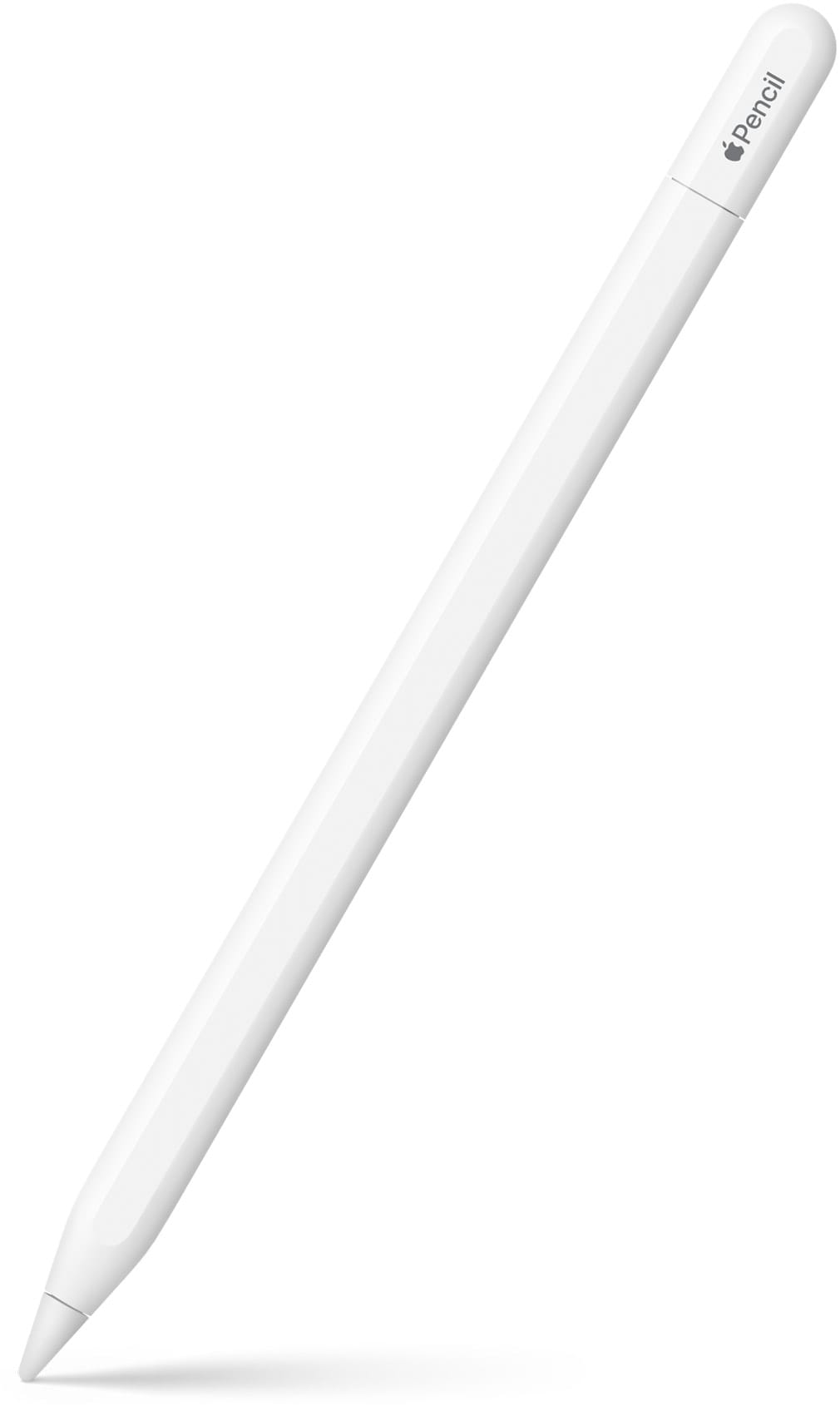
Apple Pencil
Ideal for:
- Artists
- Note-takers (Handwritten that is)
- Students
Compatibility varies by model. Make sure you choose the right one.

iPad vs Laptop: Which One Should You Choose?
If you’re trying to decide between an iPad and a traditional laptop, the right choice depends on how you use your computer.
Choose an iPad if you want:
- A lightweight device that works as both a tablet and computer
- Excellent battery life
- A touchscreen with Apple Pencil support
- A simple and secure app-based system
Choose a laptop like the MacBook Neo if you want:
- A traditional keyboard-and-trackpad experience
- Desktop software and advanced multitasking
- A larger screen for productivity
- Maximum compatibility with professional tools
For many people, the difference ultimately comes down to flexibility vs familiarity.

So… Should You Replace Your Laptop?
Yes — if your workflow allows it.
The iPad is more capable than ever. For most people, it can absolutely serve as a primary computer.
Is it perfect? No.
Multitasking can still feel cramped on smaller screens. And once you add accessories, it isn’t always cheaper than a laptop.
But it offers:
- Portability
- Instant access
- Strong battery life
- Excellent security
- Touch and Pencil input
And here’s the real-world proof:
I wrote this entire article — from idea to publication — on my iPad Air with a Magic Keyboard, and it’s become my favorite computing device.
And here on Another Tech Site, I’ll be sharing more about how to get the most out of your iPad as a serious productivity machine.