Can Your iPad Replace Your Laptop?
Can an iPad replace your laptop? Discover which models, features, and accessories make it possible — and where it still falls short!

Since the iPad was introduced in 2010 (yes — it’s really been 16 years), people have been trying to use it as a laptop replacement.
In the early days, that was… ambitious.
There was no real windowing system. No proper file management. No mouse or trackpad support. No dedicated operating system. The original iPad was essentially a large iPhone. Many apps were simply stretched iPhone apps — and some stayed that way for years (looking at you, Instagram).
Despite those limitations, people tried.
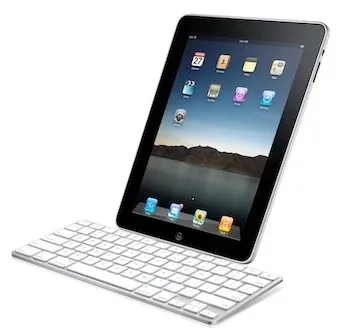
Despite those limitations, people tried.
Apple even offered a keyboard dock — a plastic keyboard with a 30-pin connector that made your iPad look like it was awkwardly docked to an iMac accessory. If you don’t remember the 30-pin connector, ask your parents.
Fast forward to today, and the iPad is a completely different device.

The Evolution of iPadOS
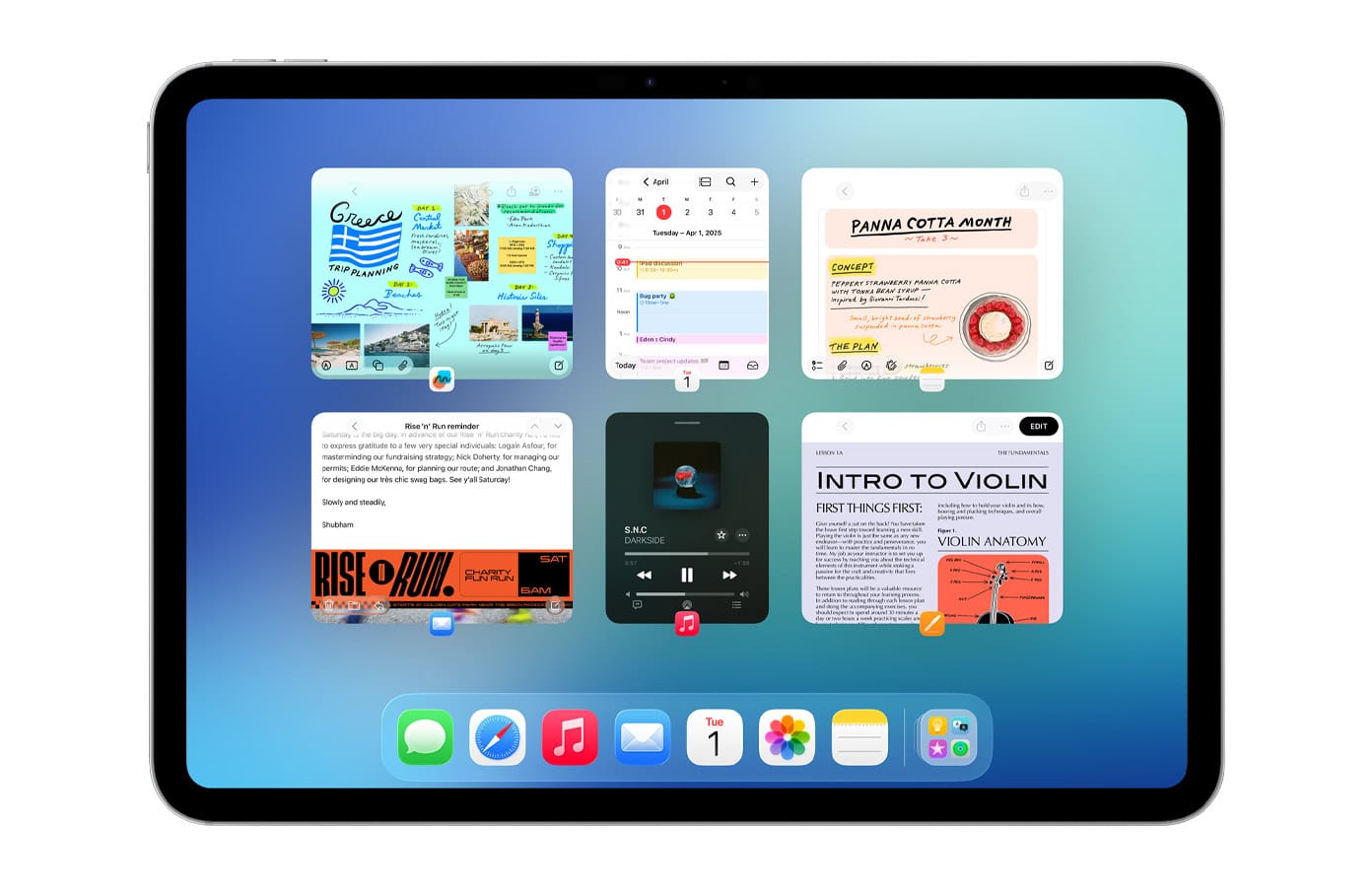
Over the years, the iPad evolved from a consumption device into something much closer to a traditional computer.
iPadOS now includes real window management, a file browser, desktop-class Safari, keyboard shortcuts, external monitor support, widgets and customizable Home Screens, and full mouse and trackpad support.
And in September 2025, iPadOS 26 brought the most desktop-like features yet.
The biggest change? A true windowing system.
You can now resize windows by dragging edges, position them freely, use familiar red, yellow, and green traffic-light controls, and access menu bars inside apps.
Apple also brought the Preview app to iPad — previously Mac-only — making PDF viewing and editing far more capable.
This was a big step.
So the real question is:
Can It Actually Replace a Laptop?

For most people? Yes.
Is it perfect? No.
Even with improved multitasking, it’s still not quite as robust as macOS or Windows for heavy workflows. But the majority of users don’t need heavy workflows.
If your computer use looks like web browsing, email, social media, watching videos, document editing, light photo or video editing, online banking, or schoolwork — an iPad can absolutely handle it.
And it offers some real advantages over traditional laptops: instant on, excellent battery life, touchscreen and Apple Pencil support, a strong sandboxed security model that protects your device from potentially malicious apps, and a lightweight and portable design with a simple, intuitive interface.
Unlike the early days — when using an iPad meant changing your workflow — today’s iPad can adapt to you.
What the iPad Still Can’t Do (Be Honest With Yourself)

The iPad isn’t ideal for 3D modeling, advanced video production, software development, or large-scale data workflows.
Yes, you can do some of those things. But if that’s your primary work, a Mac or Windows machine is still the better tool.
Screen Size and Cost Considerations
Before replacing your laptop, consider two big factors.
1. Screen Size
iPads range from 8 inches to 13 inches. Laptops can go much larger — and often feel less cramped when juggling multiple windows.
If you’re used to a 15- or 16-inch laptop, an 11-inch iPad may feel tight.
You can connect your iPad to an external display using a USB-C to HDMI adapter, which helps create a more desktop-like setup — though that’s less useful when traveling unless you carry a portable monitor or have access to one.
2. Price
iPads start at $349 and go up to $2,399 for a fully loaded iPad Pro (before accessories).
But here’s the catch: the keyboard is extra. Apple’s keyboard cases run $249–$349. Add a Pencil and that’s another $79–$129. At that point, your “cheap tablet” may cost as much as a laptop.
Compared to a MacBook, pricing ends up similar. Compared to a Windows laptop or Chromebook, the iPad is often more expensive. You’re paying for portability, build quality, battery life, and Apple’s ecosystem.
The $599 Laptop Alternative: MacBook Neo
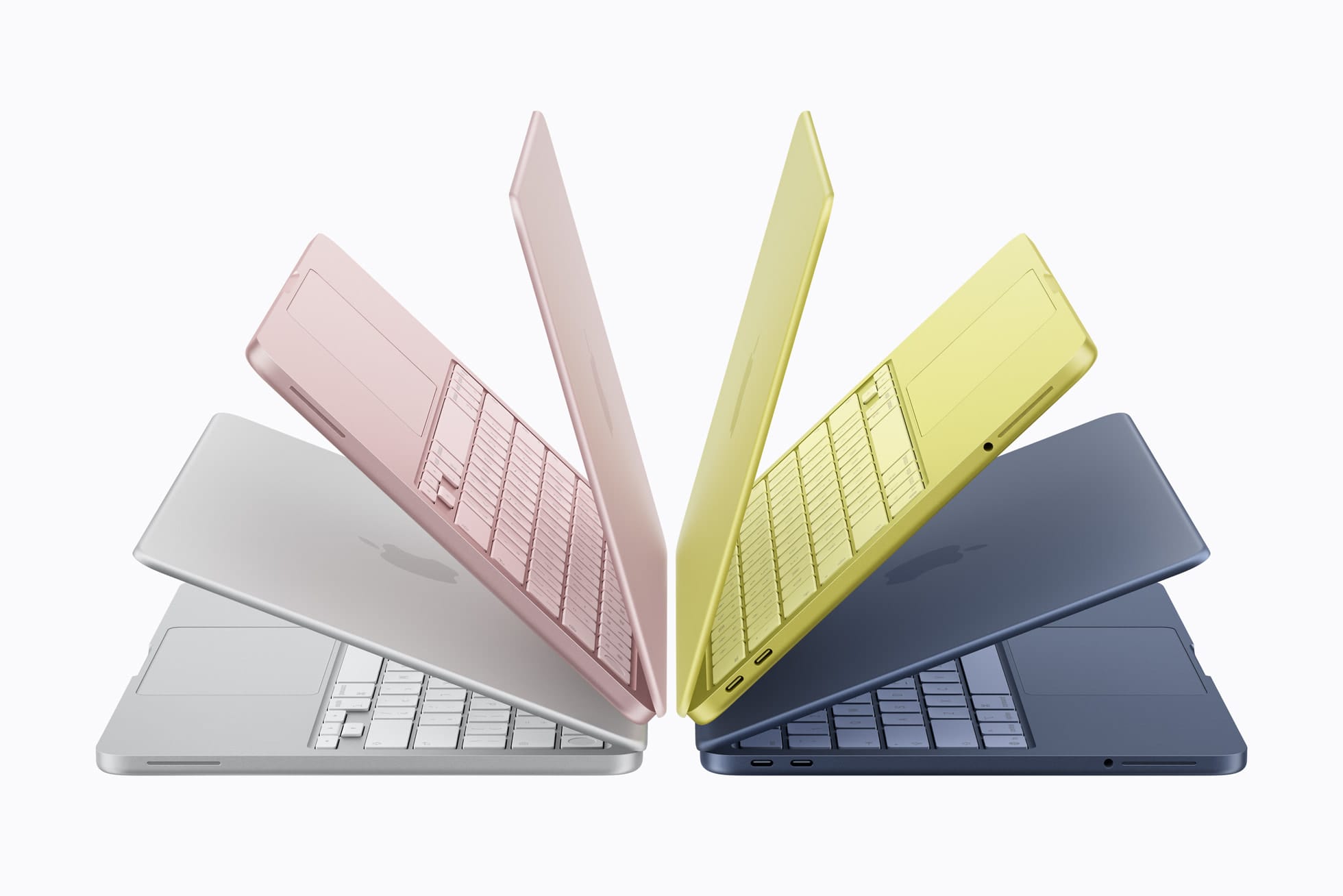
Here’s a curveball Apple just threw into the mix — a brand new budget laptop called the MacBook Neo, which launched earlier this month starting at $599.
That price puts it right in the same conversation as many iPad setups, especially once you add a keyboard case.
The MacBook Neo runs on Apple’s A18 Pro chip (yes, the same chip as the iPhone 16 Pro — not the M-series found in iPads and MacBooks) with 8GB of RAM, a 13-inch Liquid Retina display, and up to 16 hours of battery life. It comes in four fun colors: Silver, Blush, Citrus, and Indigo.
What you get with the MacBook Neo:
∙ A traditional laptop experience with macOS
∙ Full desktop applications
∙ More flexible multitasking
∙ Better support for professional workflows
What you give up compared to the iPad:
∙ No touchscreen or Apple Pencil support
∙ No tablet flexibility
∙ Less portability (it’s a laptop, not a tablet)
In other words: if you want a traditional laptop experience at the lowest Apple price, the MacBook Neo is a compelling option. If you want the flexibility of a device that works as both a tablet and a computer, the iPad still offers something no laptop can.
Which iPad Should You Get?
Let’s break it down.
iPad (Base Model) – $349
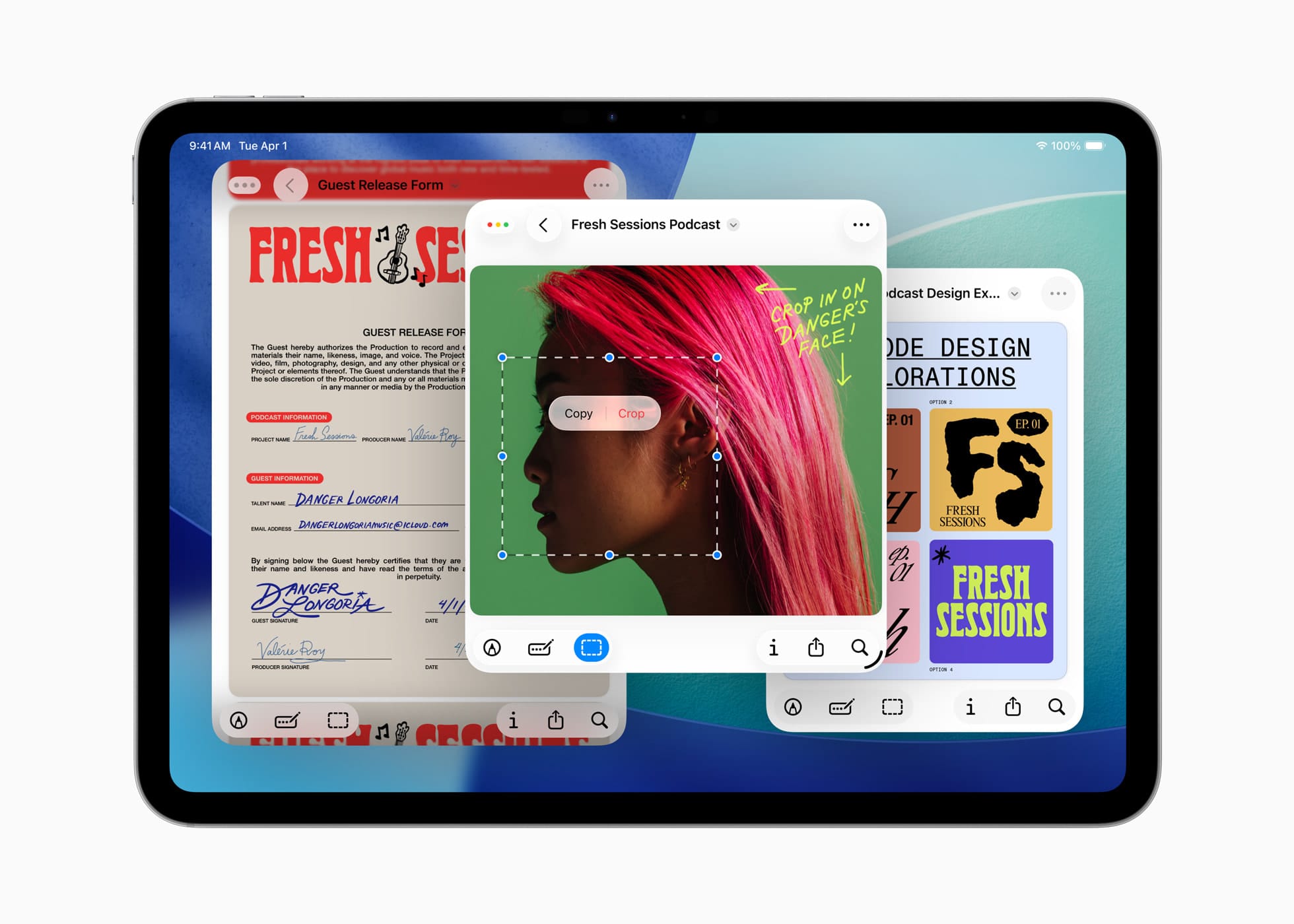
Best for casual users, students, and light productivity. Great value — handles everyday tasks easily.
Limitations: single 11-inch screen size, uses an A-series chip (less powerful than M-series), and No Apple Intelligence support (For Now)
For most people, it’s enough.
iPad Mini – $499
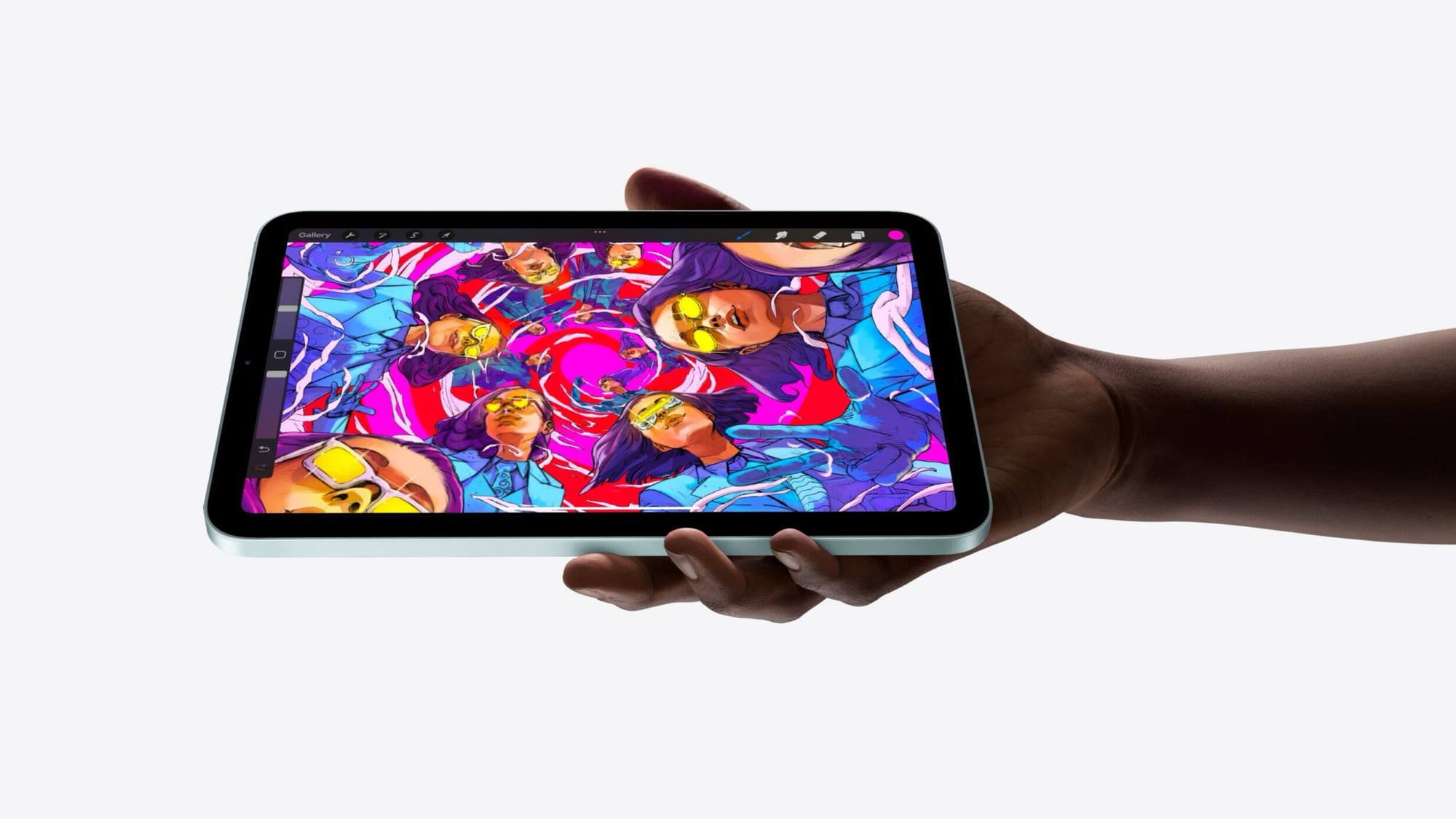
The most portable option. Powerful for its size and supports Apple Intelligence — but the 8-inch screen is small for productivity, and there’s no official Apple keyboard case. Great as a secondary device, tough sell as a primary computer.
iPad Air – $599–$799
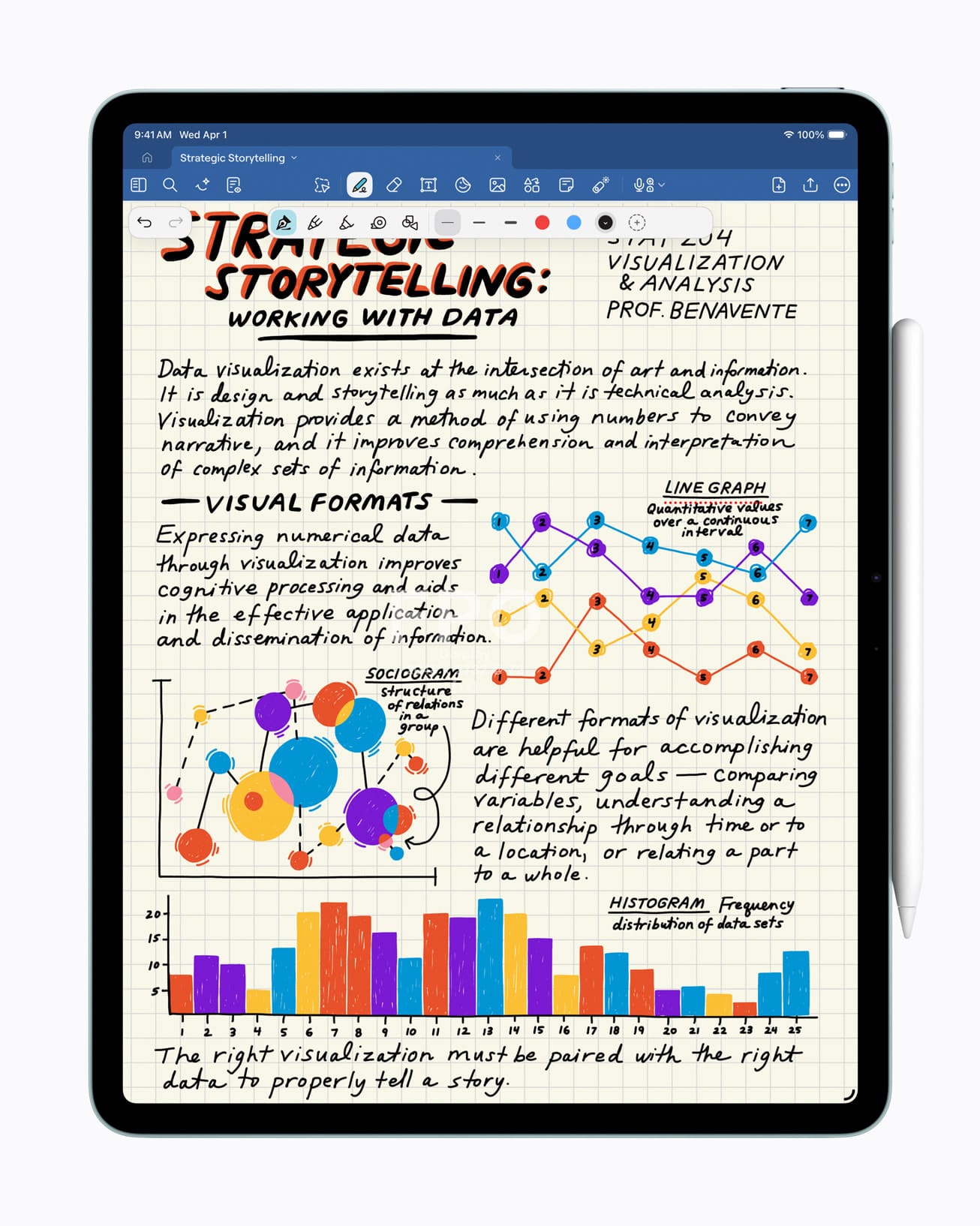
The sweet spot. M-series chip (same architecture as Macs), available in 11-inch and 13-inch, strong performance, and reasonably priced. Tradeoffs are an LCD display (not as advanced as Pro) and Touch ID instead of Face ID.
For most serious “laptop replacement” users, this is the best balance.
iPad Pro – $999+
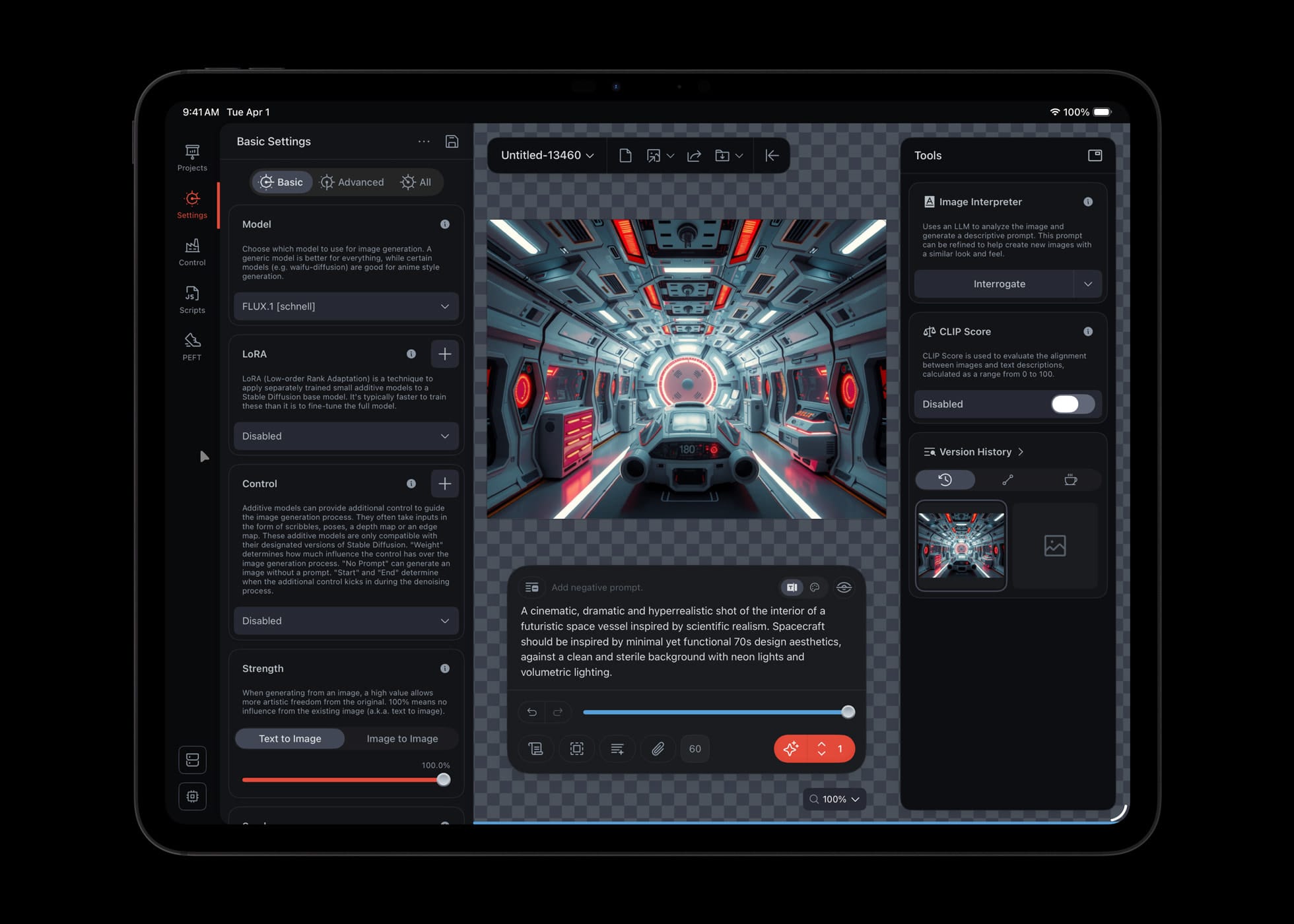
For power users and creatives. Best display, Face ID, fastest processor, Thunderbolt support. For average users? Probably overkill.
Quick Picks
💰 Best Budget Option: iPad (Base Model)
⚖️ Best Balance: iPad Air (11-inch)
🖥 Best Large Screen Value: iPad Air (13-inch)
🚀 Best Performance: iPad Pro
📱 Most Portable: iPad Mini
Should You Buy Refurbished?
Absolutely worth considering. An M2 iPad Air (13-inch, 128GB) might cost $639 refurbished versus $799 for the newest model. Apple’s refurbished products are excellent — and often the best value in the lineup.
Accessories: Do You Need Them?
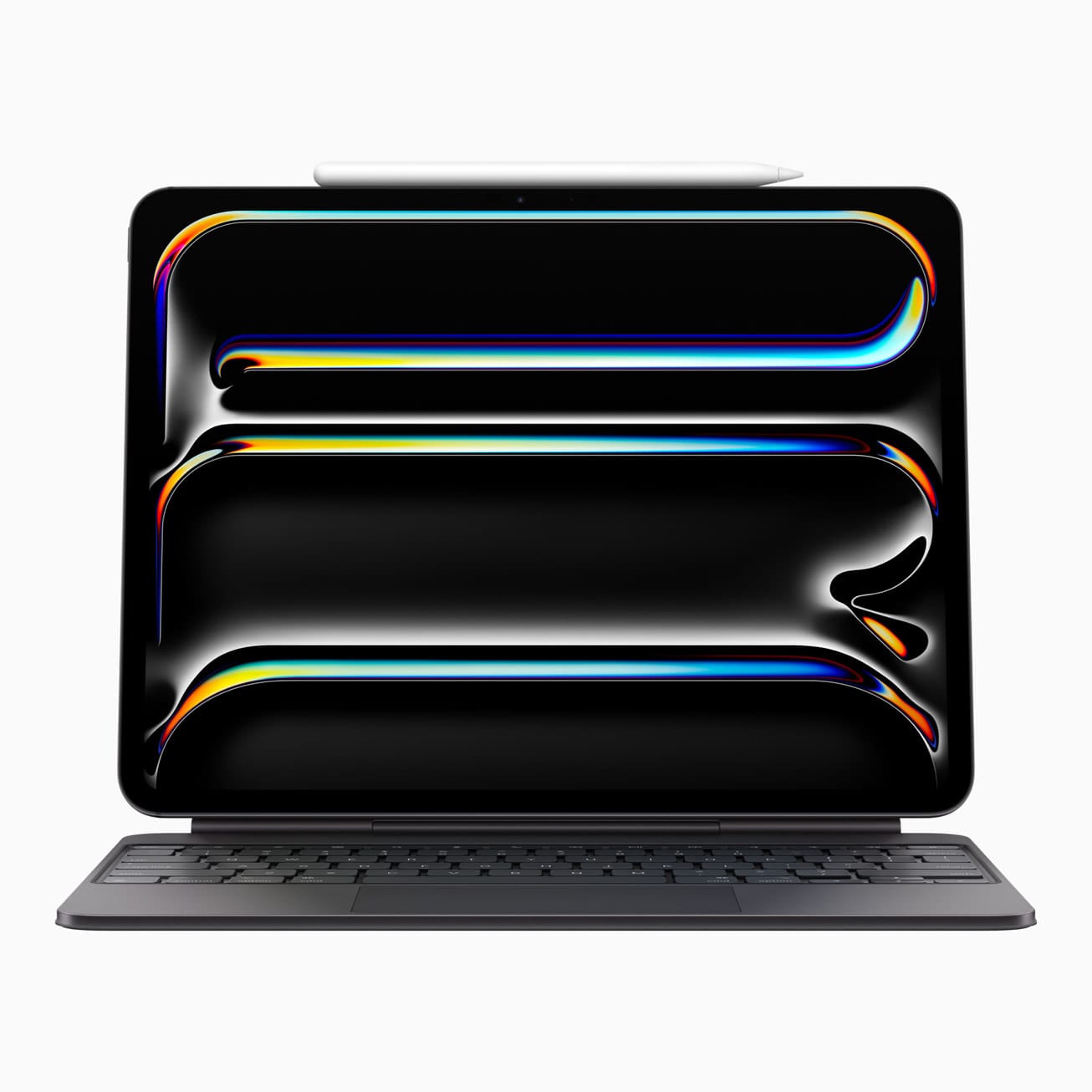
Keyboard Case
Not required, but highly recommended. Third-party options from Logitech and ESR can save real money versus Apple’s Magic Keyboard. If you want a laptop-like experience, this is the accessory that makes it happen.
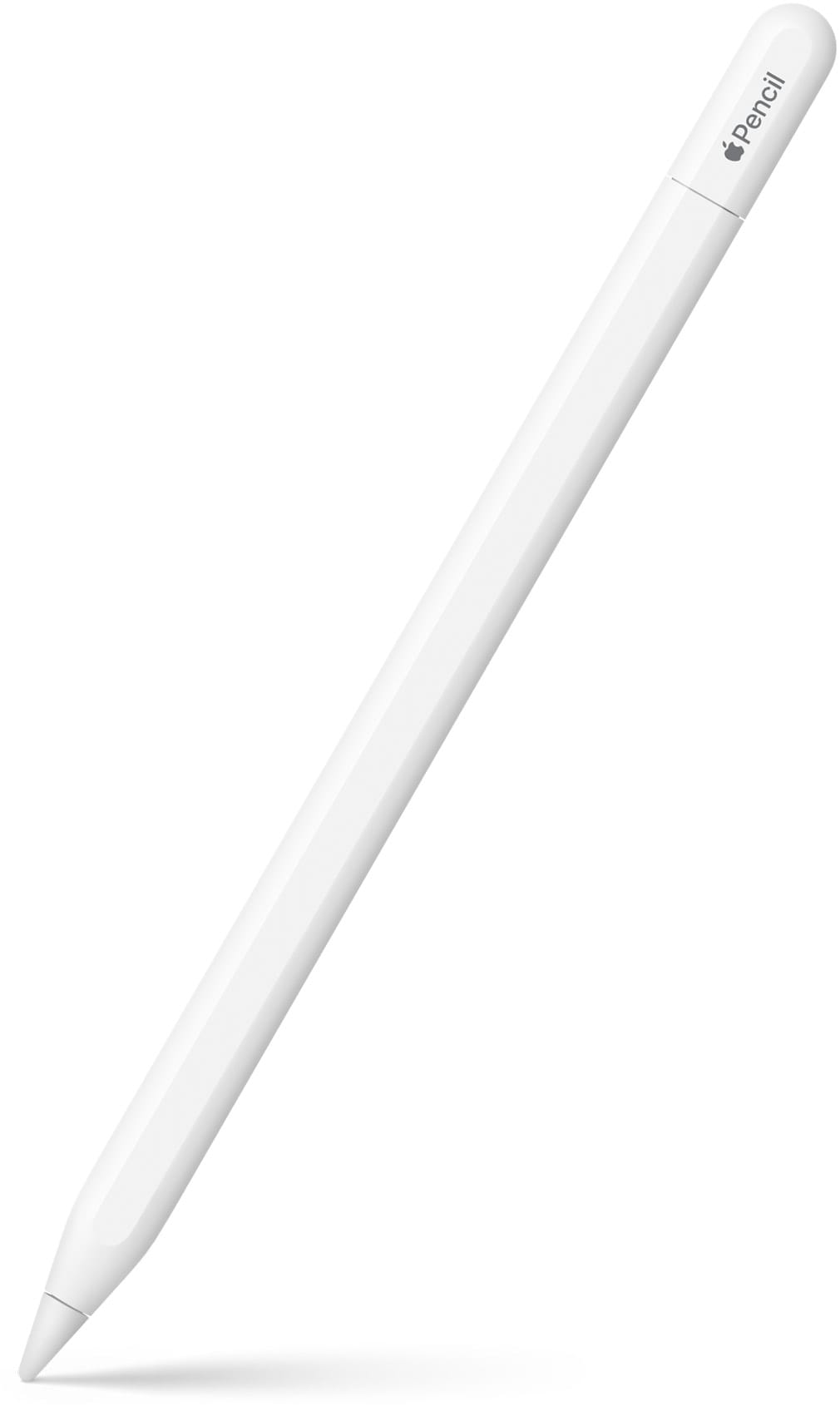
Apple Pencil
Ideal for artists, note-takers, and students. Compatibility varies by model, so make sure you pick the right one.

💌 Want more tips on getting the most out of your Apple devices? Subscribe to the ATS newsletter — no spam, just practical stuff that actually helps.
iPad vs Laptop: Which One Should You Choose?
Choose an iPad if you want:
∙ A lightweight device that works as both a tablet and computer
∙ Excellent battery life
∙ A touchscreen with Apple Pencil support
∙ A simple, secure, app-based system
Choose a laptop like the MacBook Neo if you want:
∙ A traditional keyboard-and-trackpad experience
∙ Desktop software and more advanced multitasking
∙ Better compatibility with professional tools
∙ The lowest entry price into the Apple ecosystem
For many people, the difference comes down to flexibility vs. familiarity.

So… Should You Replace Your Laptop?
Yes — if your workflow allows it.
The iPad is more capable than ever. For most people, it can absolutely serve as a primary computer. Is it perfect? No. Multitasking can still feel cramped on smaller screens, and once you add accessories it isn’t always cheaper than a laptop.
But it offers portability, instant access, strong battery life, excellent security, and touch and Pencil input that no laptop can match.
And here’s the real-world proof: I wrote this entire article — from idea to publication — on my iPad Air with a Magic Keyboard, and it’s become my favorite computing device.
Here on Another Tech Site, I’ll be sharing more about how to get the most out of your iPad as a serious productivity machine. Stay tuned.