Tech Tip Tuesday: The AirDrop Setting That’s Probably Annoying You
Is your iPhone broadcasting itself to everyone nearby? Learn how to quickly lock down your AirDrop settings to protect your privacy and stop unwanted files

Have you ever been in a public place and had a random photo or file request pop up on your screen?
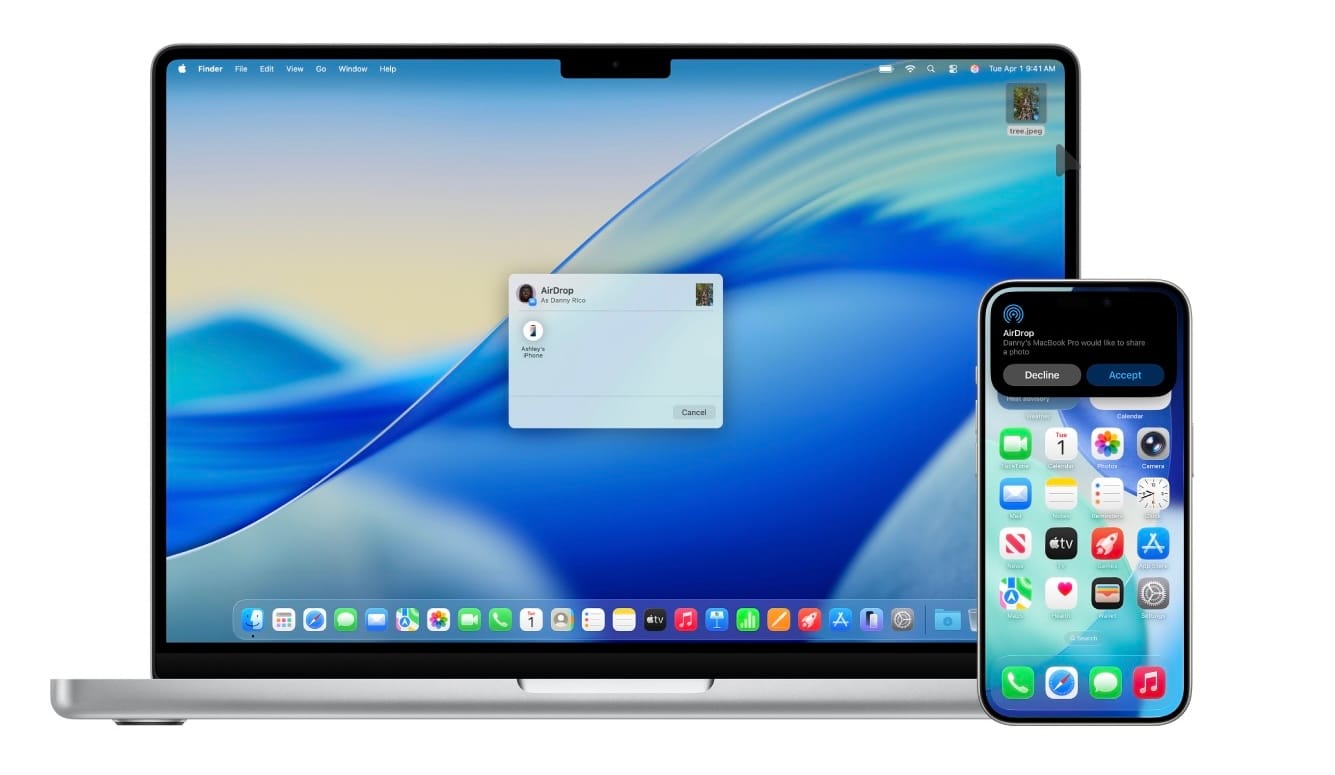
What is AirDrop?
AirDrop is a feature built into Apple devices that lets you instantly share photos, videos, documents, and more with other nearby iPhones, iPads, and Macs. It uses a combination of Bluetooth and Wi-Fi to create a fast, secure, peer-to-peer connection. It is incredibly useful for quickly sending a high-quality photo to a friend or sharing a PDF with a colleague without having to wait for an email to send.
The Problem
If your AirDrop is set to "Everyone," your phone is essentially broadcasting itself to anyone nearby. Not only is this annoying, but it can also be a serious privacy concern. In crowded places like airports or concerts, strangers can randomly AirDrop unsolicited files to your device. Because you don't know who they are or what they are sending, accepting these can be incredibly risky.
How to Lock It Down:
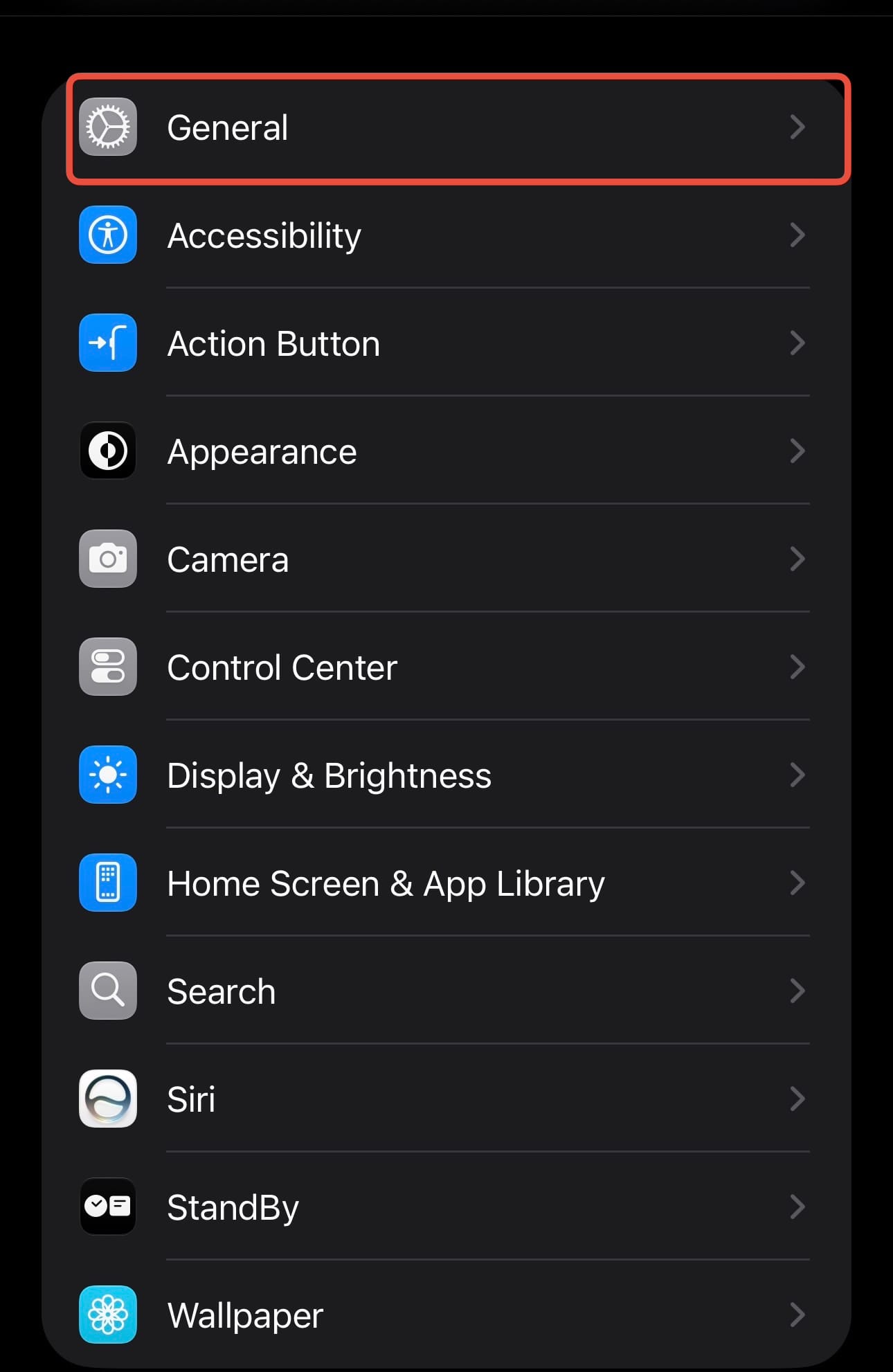
Open Settings and tap General.
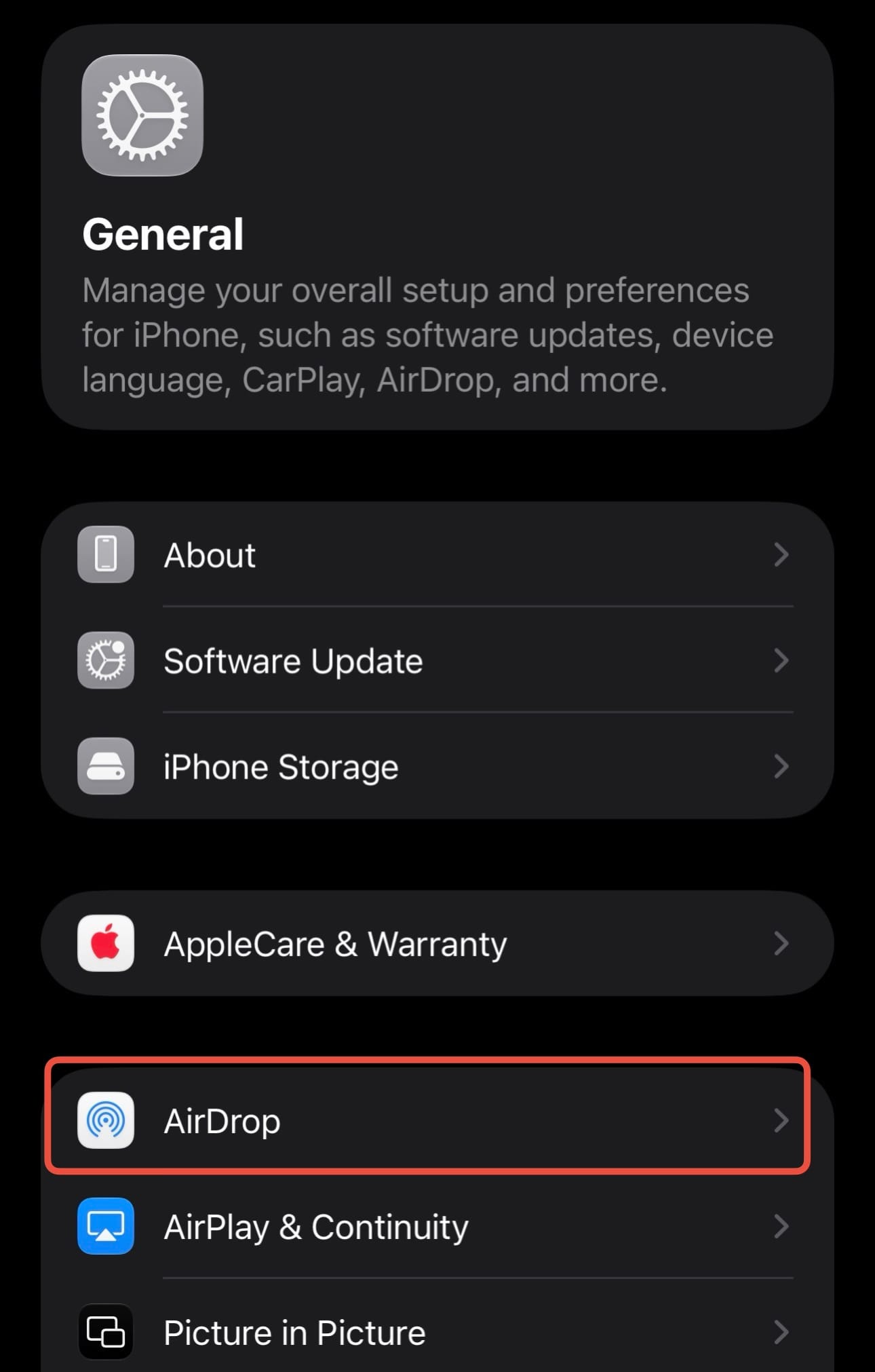
Tap AirDrop.
Change the setting to Contacts Only.
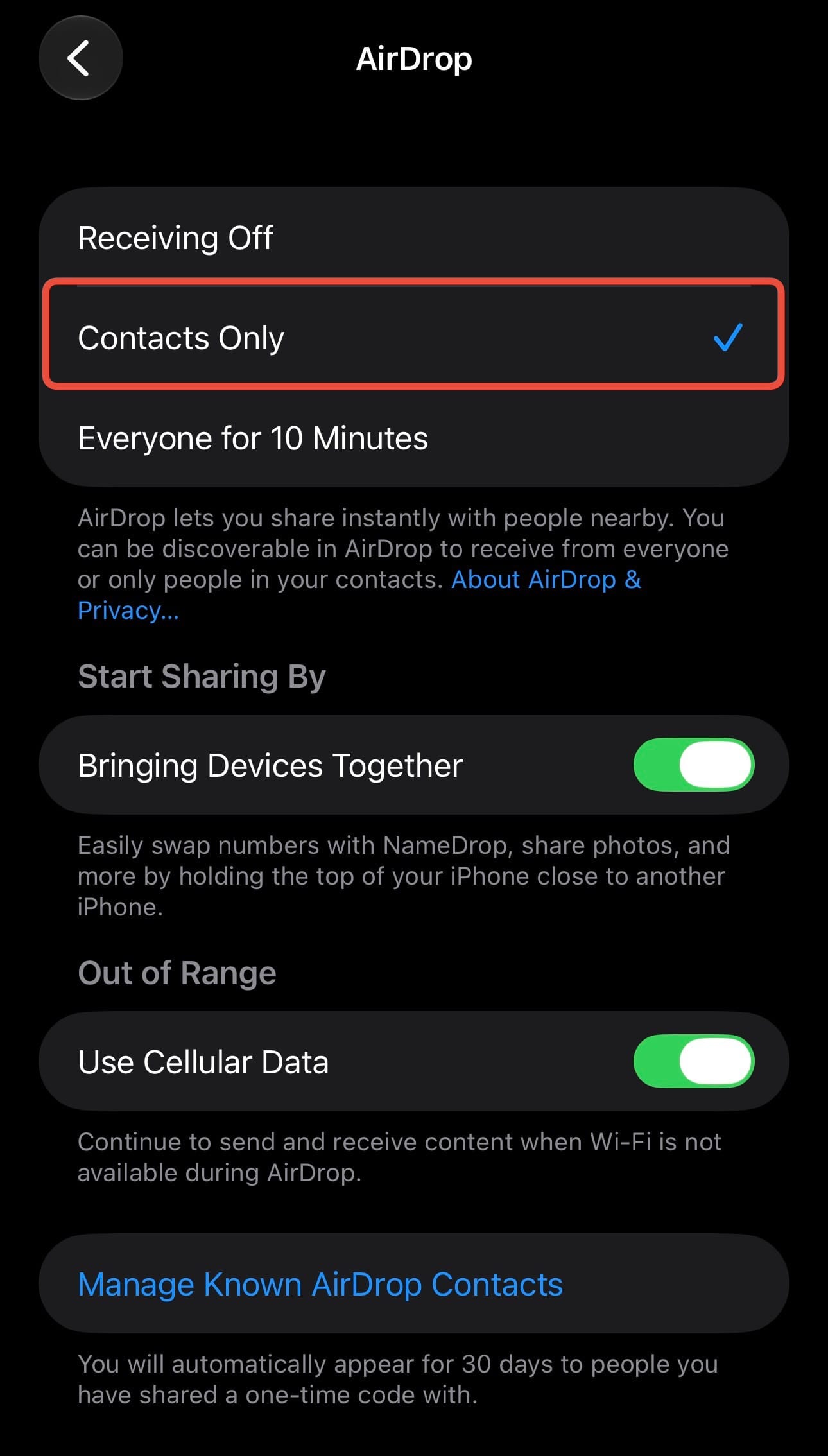
Now, only people in your address book will be able to send you files. If you ever need to receive something from a stranger, you can temporarily switch it to "Everyone for 10 Minutes" from your Control Center.