How to Turn any Website into a PDF (No App Required)
Stop taking endless scrolling screenshots. Here is the hidden built-in trick to turn any webpage into a single, searchable PDF on your Apple device.

Have you ever found a long article, a recipe, or a travel itinerary online that you wanted to save for later, only to realize you might not have internet access when you need it? Or maybe you just wanted to share a clean, unalterable version of a webpage with a friend or colleague.
While you could take a series of screenshots and try to stitch them together, there is a much easier way built right into your iPhone and iPad. You can turn any website into a PDF in just a few taps, and you do not need to download any third-party apps to do it.
Here is how to do it:
Open Safari and navigate to the webpage you want to save
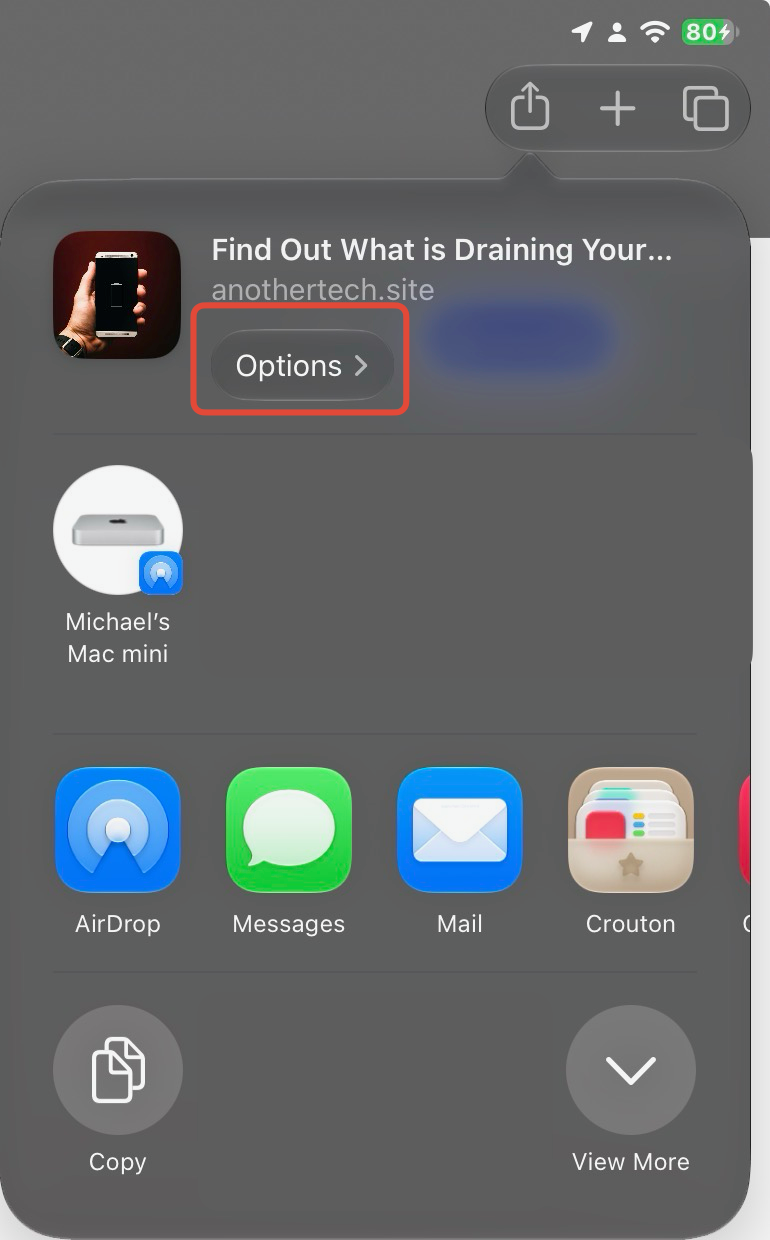
At the top of the share sheet, next to the title of the webpage, tap the small Options button.
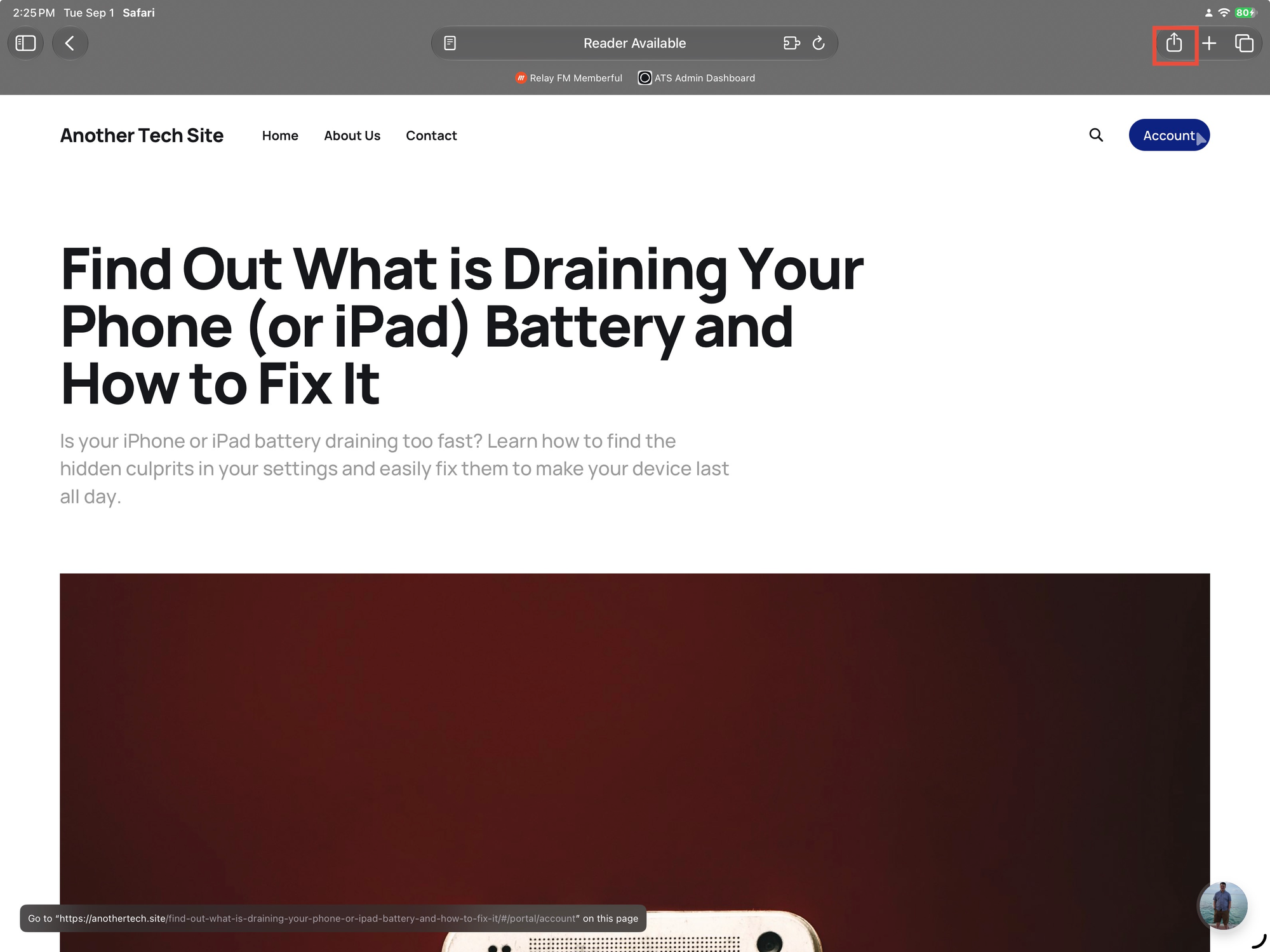
Tap the Share button at the bottom of the screen (the square with the arrow pointing up).
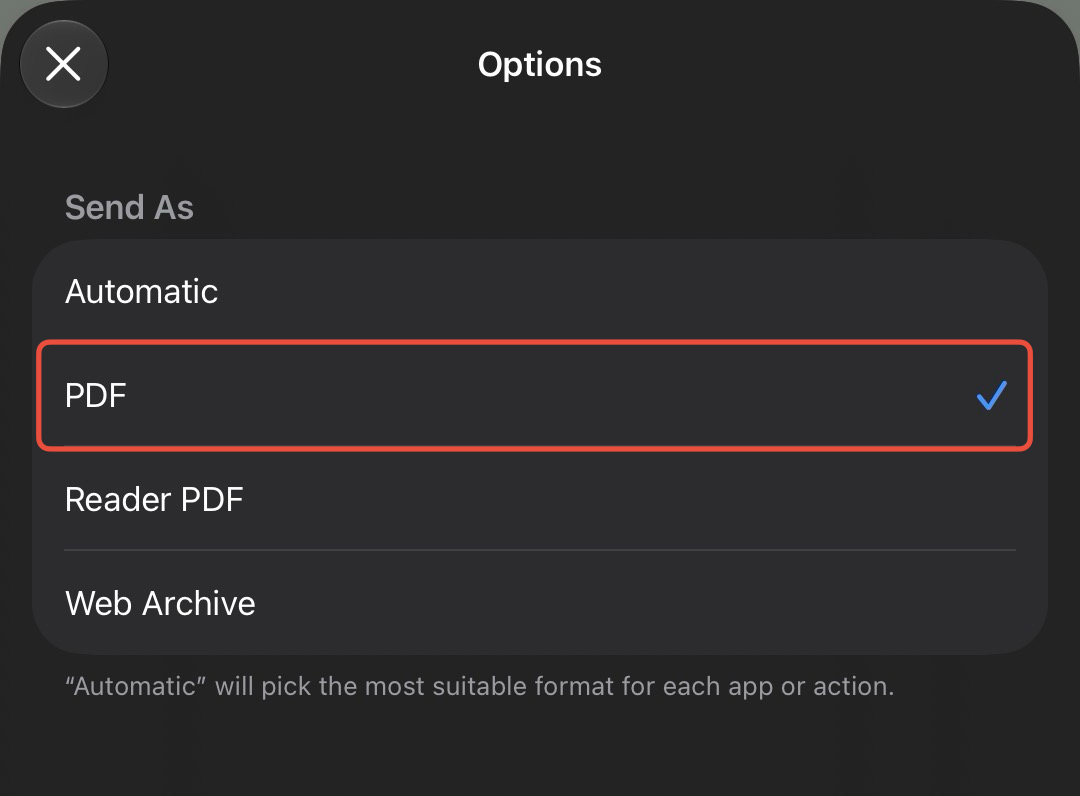
Select PDF from the list of formats, then tap Done.
Choose Save to Files to save the PDF to your device or iCloud Drive.
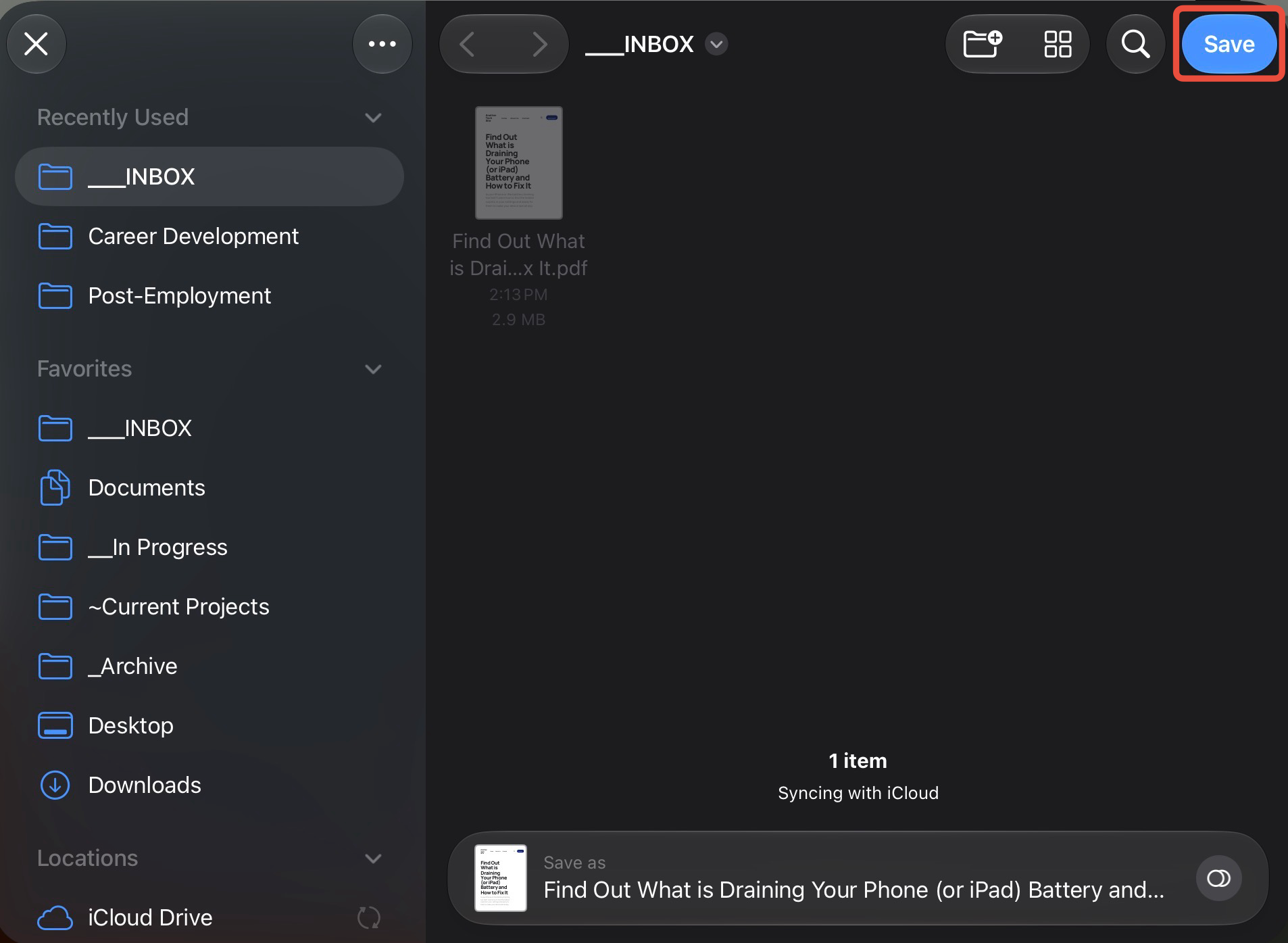
Now you have a perfect, scrollable PDF of the entire webpage that you can access anytime, anywhere, completely offline. You can also easily email it, text it, or mark it up with your Apple Pencil or finger.