Stop Losing Photos—The iCloud Setting Everyone Ignores
We all assume our photos are safely backed up. But one wrong setting could mean losing everything. Here is how to check your iCloud settings and keep your memories safe.

We all assume our photos are safely backed up to the cloud. But if you are like most people, you might be one full phone away from losing everything.
The most common mistake is confusing "syncing" with "backing up." If you delete a photo from your phone to save space, iCloud deletes it everywhere.
Here is how to make sure your memories are actually safe:
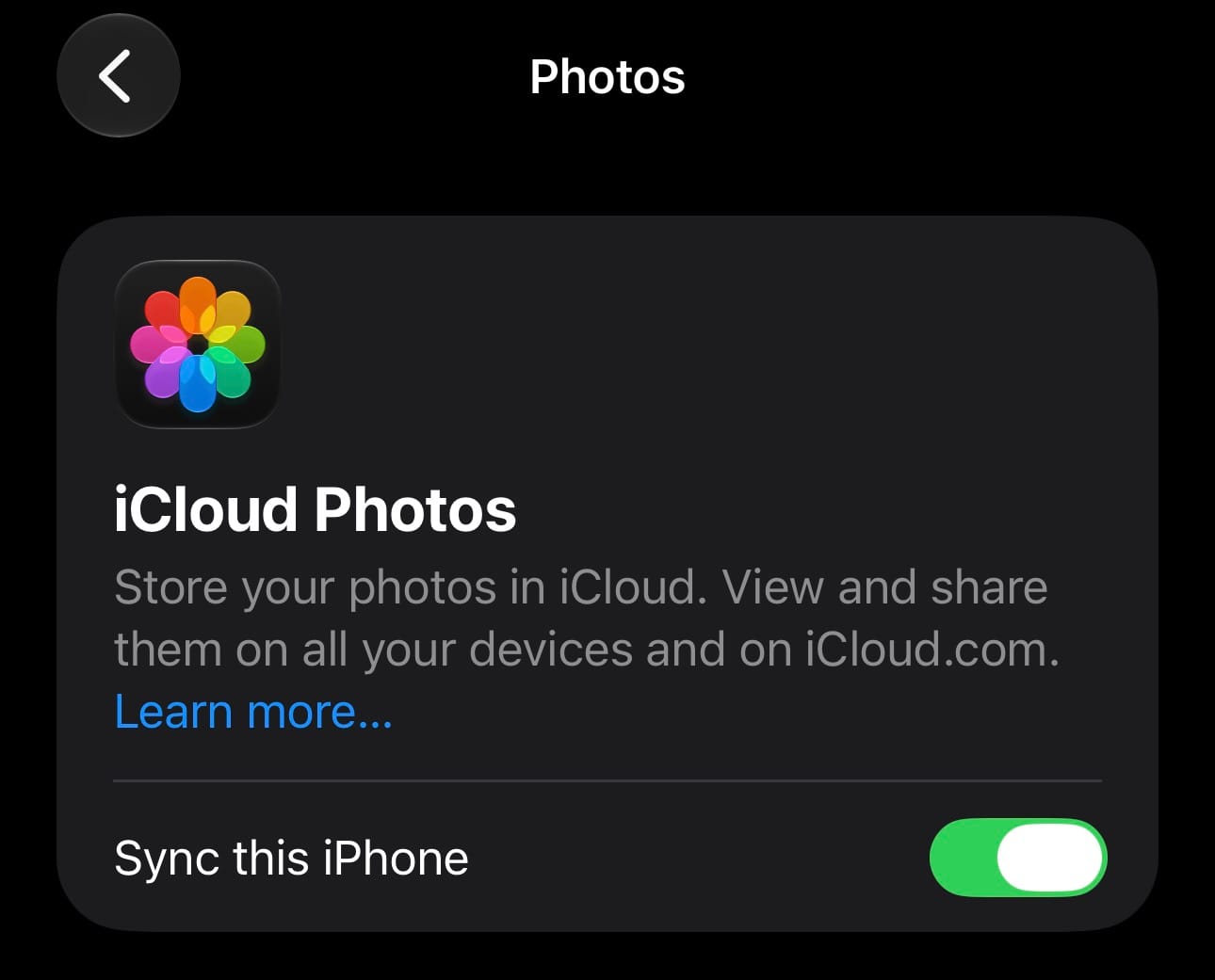
Check Your Sync: Open Settings, tap your name at the top, then tap iCloud and Photos. Make sure Sync this iPhone is turned on.
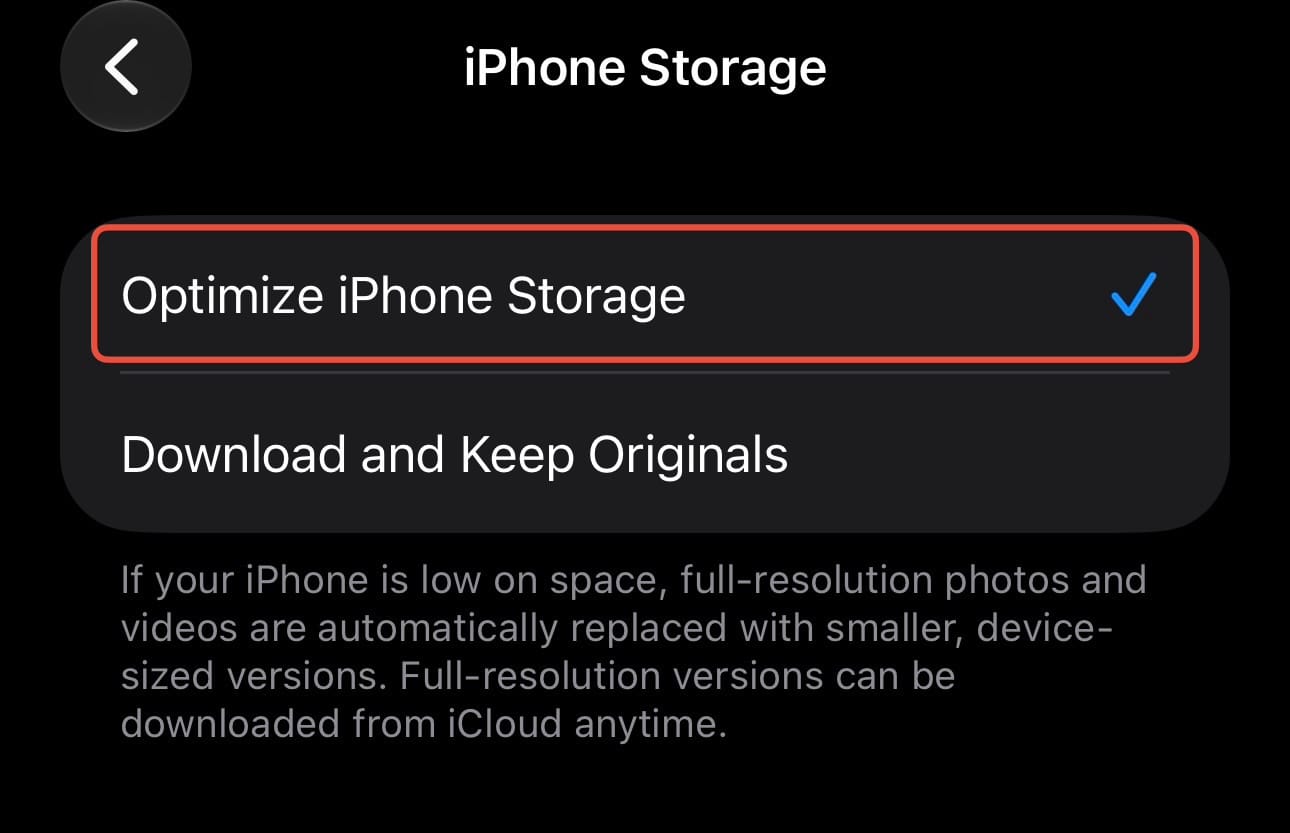
Optimize Storage: If you are running out of space on your phone, select Optimize iPhone Storage. This keeps full-resolution photos in iCloud and smaller, space-saving versions on your device.
The Ultimate Backup: Remember, iCloud is a syncing service. If you want a true backup that survives accidental deletions, consider using a secondary service like Google Photos or Amazon Photos, or regularly backing up your phone to a computer.
Take two minutes today to check your settings. Your future self will thank you!