Stop Texting Your WiFi Password Like an Animal
Your WiFi password doesn't need to be yelled, texted, or taped to the fridge. Here's how to make it a QR code instead.

You know the drill. Someone comes over, asks for the WiFi password, and you either:
1. Yell a 16-character string of nonsense across the room ("It's lowercase b, capital R, exclamation point, seven, seven...")
2. Hand them a sticky note that's been living on your fridge since you set up your Wi-Fi
3. Make them squint at your phone screen while you scroll through Settings trying to remember where you buried it
4. Text them your Wi-Fi password, which is not secure
There's a better way, and it's already built into your iPhone. Your phone can turn your WiFi password into a QR (Quick Response) code. All guests need to do is scan the QR code with their phone camera, and they're online in about two seconds — no typing, no yelling, no fridge archaeology required, no security breaches waiting to happen.
Here's how to set it up on your iPhone, so you can get your guests online quickly at your next get-together.
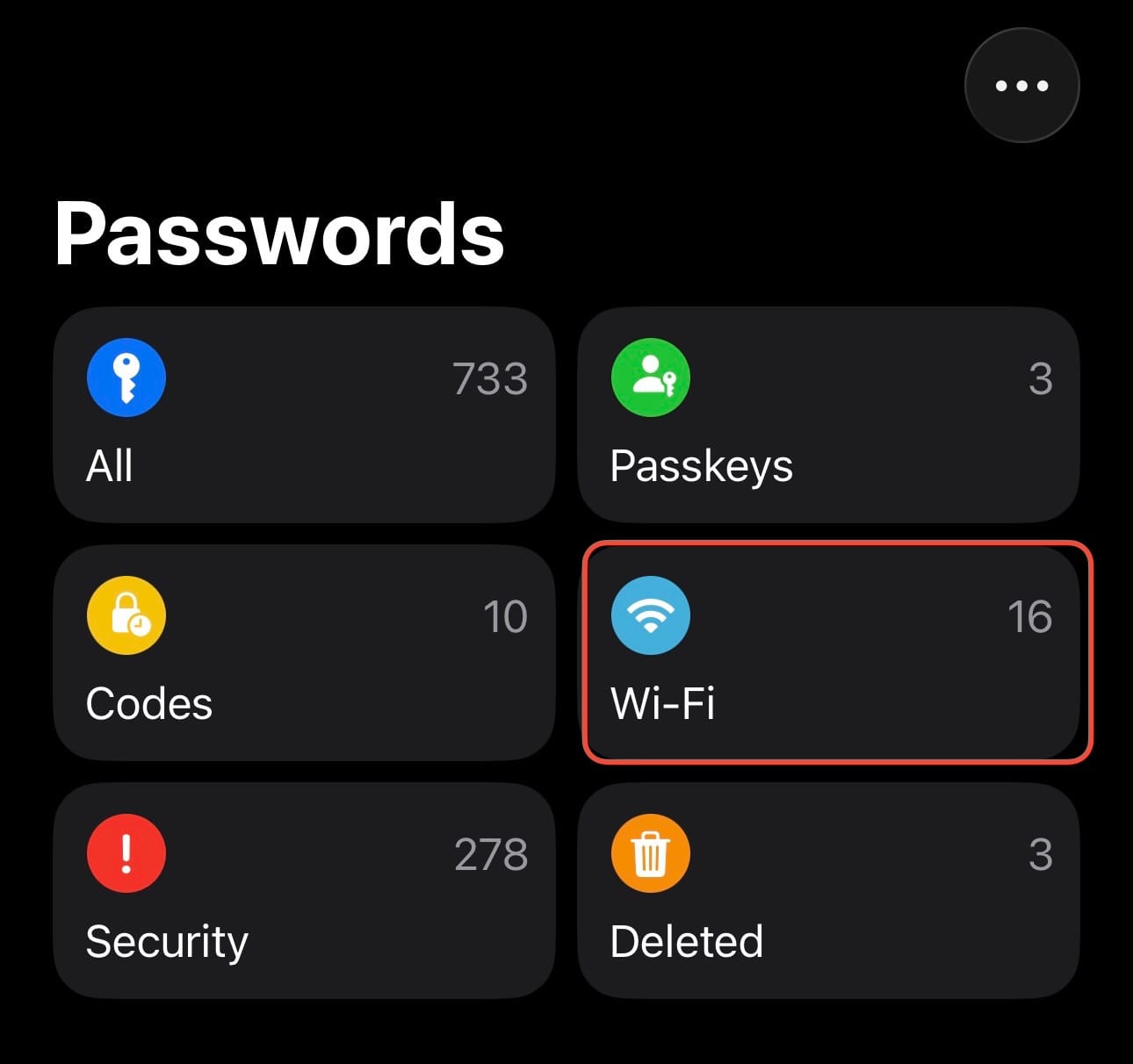
1. Open the Passwords app (if you've never opened it, it's built into phones running iOS 18 or newer) — you can search for it in Spotlight or find it in the App Library (the last Home Screen)
2. Unlock the Passwords app using Face ID, Touch ID, or your passcode
3. Tap Wi-Fi
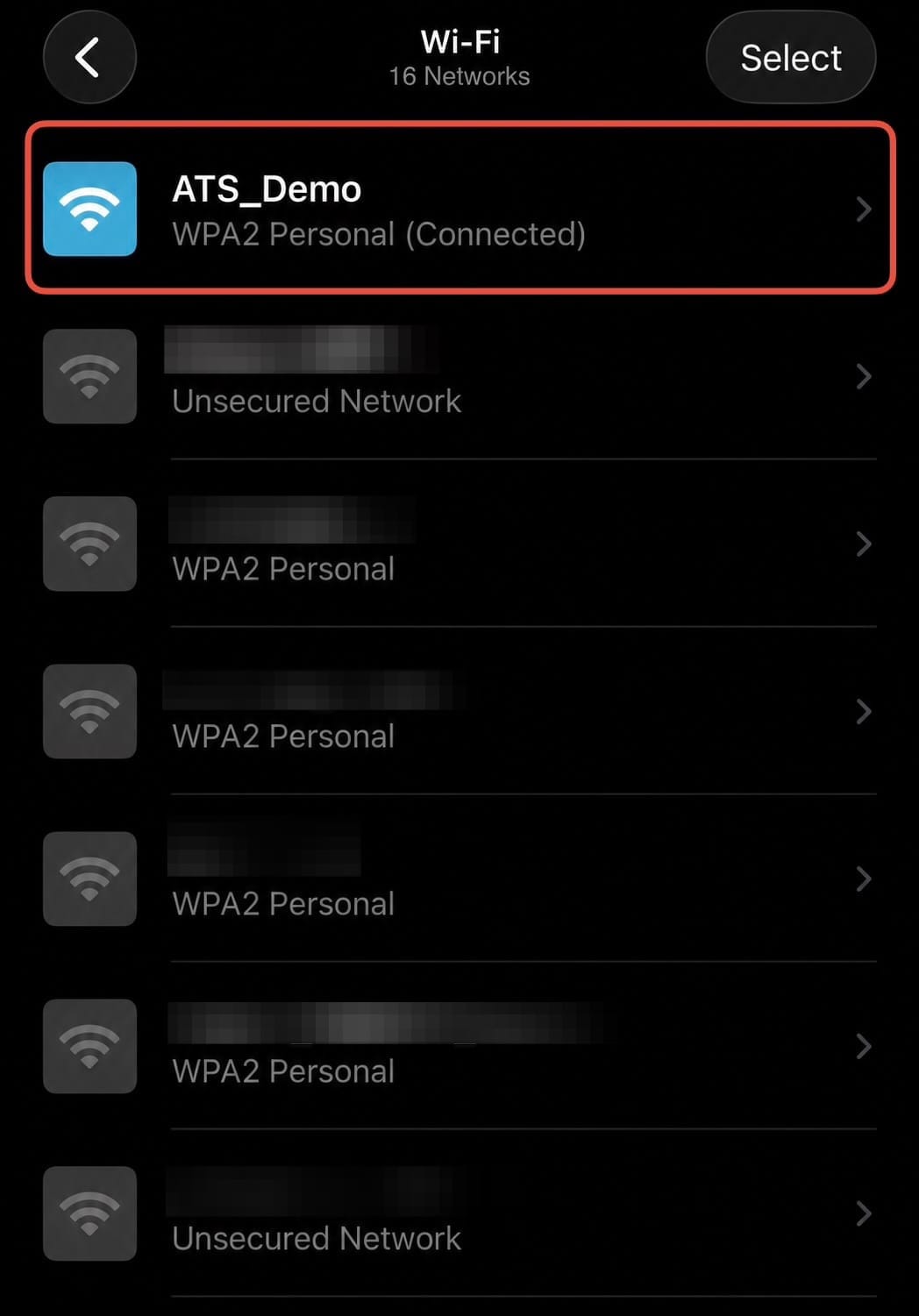
4. Tap the network you want to share
5. Tap Show Network QR Code
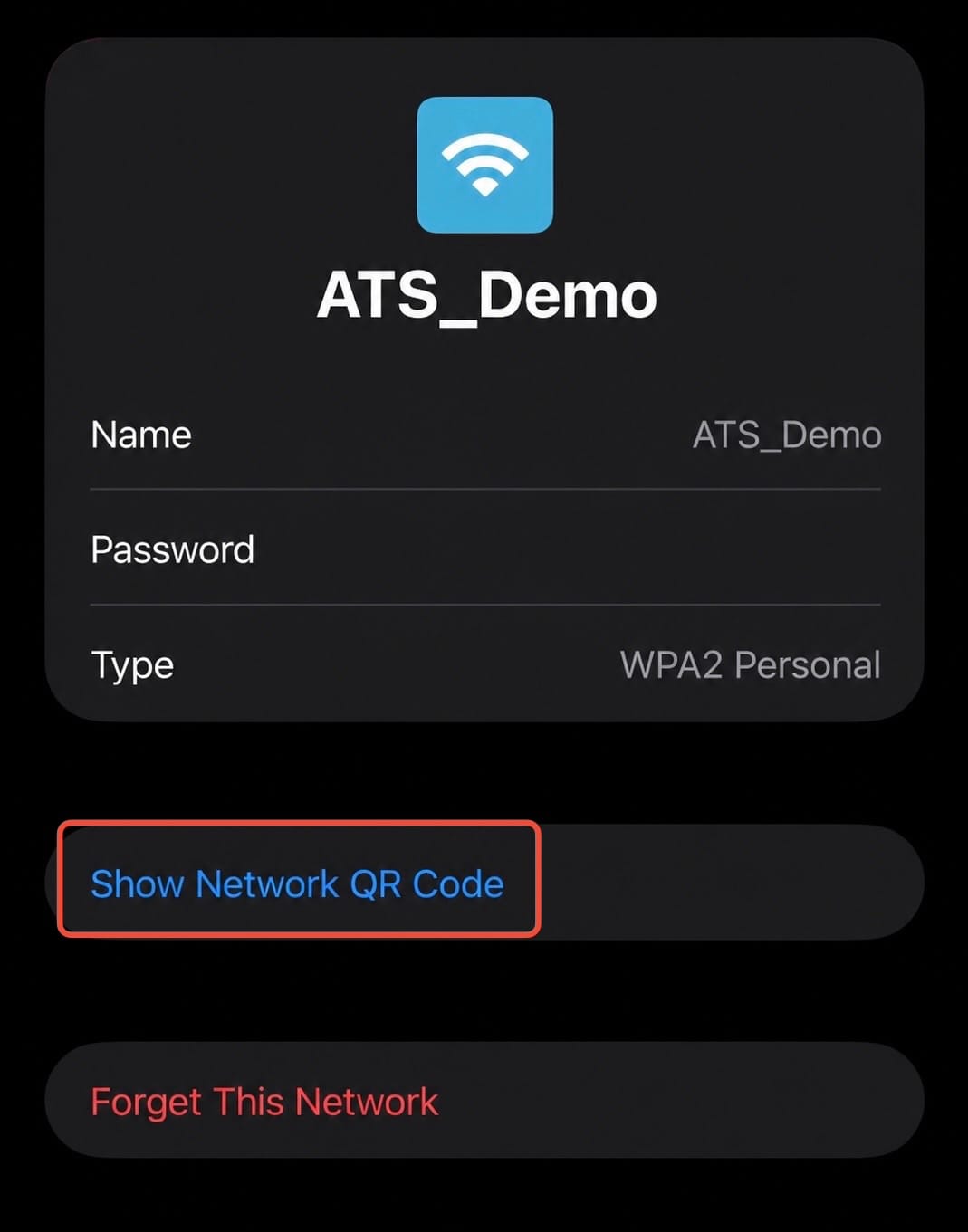
That's it. No password to say out loud, no note to lose. Now all your guest needs to do is point their iPhone camera at it and join the network.

Guests Connecting to Your Wi-Fi is easy as Taking a Picture
When it's time to connect, guests just need their camera app — nothing fancy to download.
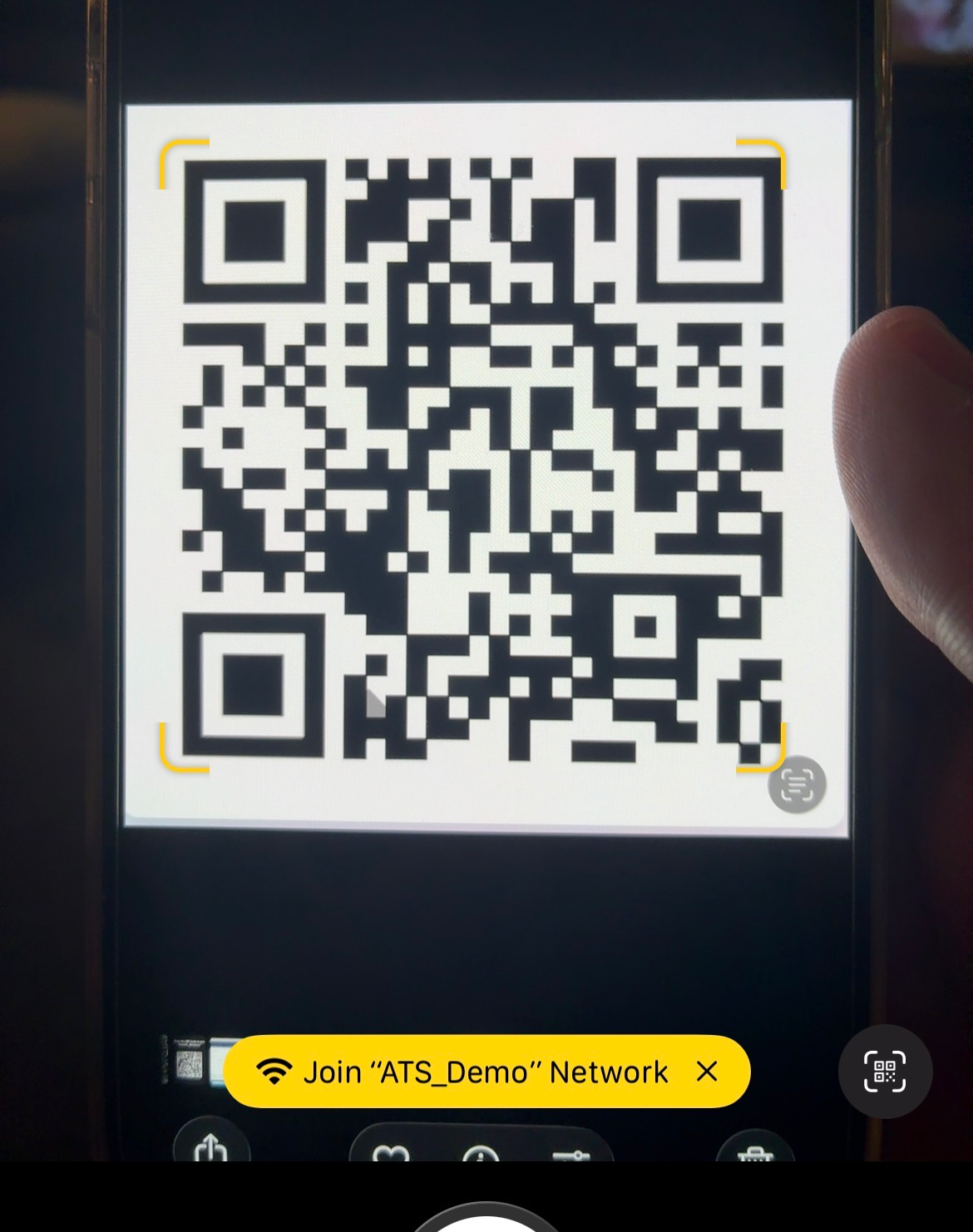
- Open the camera app (yep, just the regular camera) and point it at the QR code
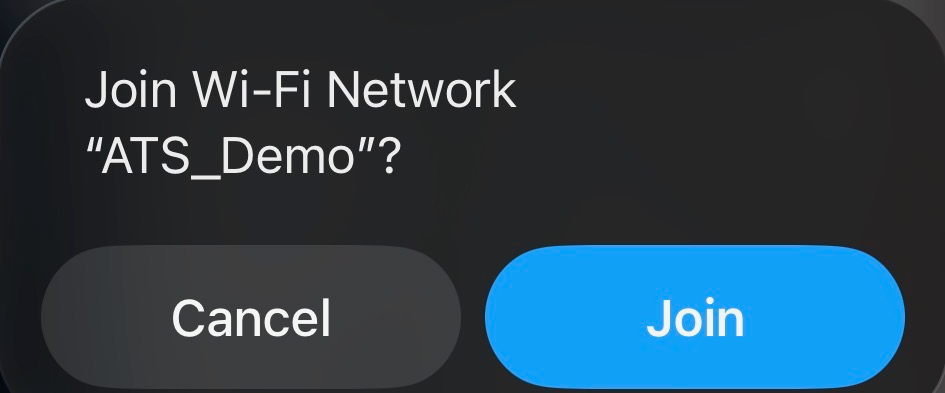
- Tap the yellow notification banner that pops up
- Tap Join to confirm — and that's it, you're online
No password to type, no asking us to repeat it three times.
Want to take it up a level?
Maybe you don't want to unlock your phone and pass it around to your guests. No problem — you can take a screenshot of your QR code instead.
iPhones without a Home button: Press the Side button and Volume Down button at the same time
iPhones with a Home button: Press the Sleep/Wake button and Home button at the same time
Once you have a screenshot, you can do just about anything with it, such as:
1. Print a copy to keep on hand for guests
2. Make a magnet for your fridge (replace that old Post-it)
3. Get custom coasters made
4. Get a custom welcome sign made
If you want something a little more polished than a raw screenshot — with your network name labeled, maybe a "Scan me for WiFi" caption — there are free QR generator sites where you just plug in your network name and password manually and it'll spit out a cleaner, styled version. I recommend QR Code Generator, which lets you customize your QR code with frames, colors, and more, completely free. But honestly? The built-in one works fine for 90% of people.
A word of caution
That QR code contains your actual WiFi password in scannable form. Anyone who scans it connects — no different than if you'd told them the password out loud. So treat the printed version the way you'd treat a sticky note with your password on it: fine for your living room, maybe not for a photo you post to Instagram.
*Got a tech tip request? Something driving you nuts about your smart home, your phone, or your apps? [Reach out] — chances are someone else is fighting the same battle.*