Turn Off the Notification That’s Driving You Crazy
Is your phone buzzing non-stop? You don't owe every app your attention. This week, we break down how to silence the noise, manage your lock screen, and use hidden iOS features to reclaim your sanity.

Every app you install seems to think it deserves your undivided attention. The average person has dozens of apps on their phone, and if most of them are allowed to send notifications, your phone will be buzzing non-stop. It’s no wonder we can't focus.
Some notifications are necessary—text messages, severe weather alerts, or your food delivery arriving. But a lot of apps just use notifications to try to sell you things or pull you back into their ecosystem.
If you're ready to reclaim your focus, here is how to take control.
How to Turn Them Off:
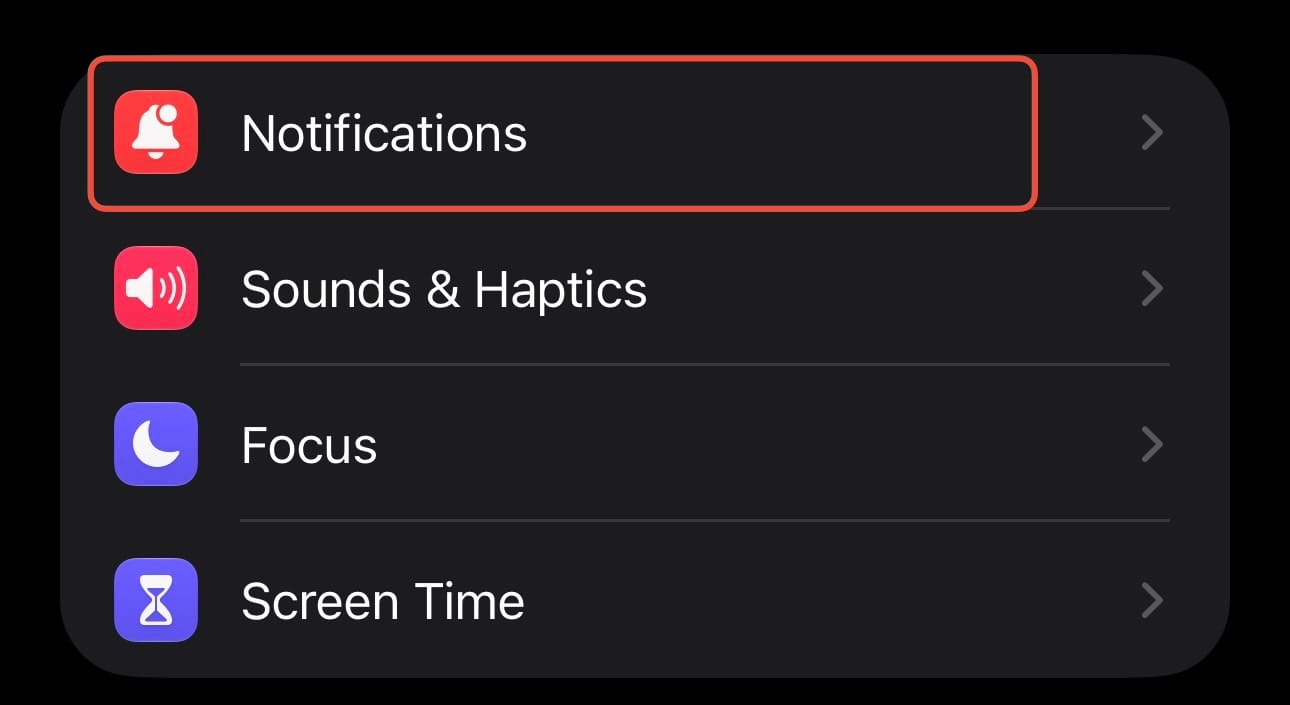
Open Settings and tap Notifications.
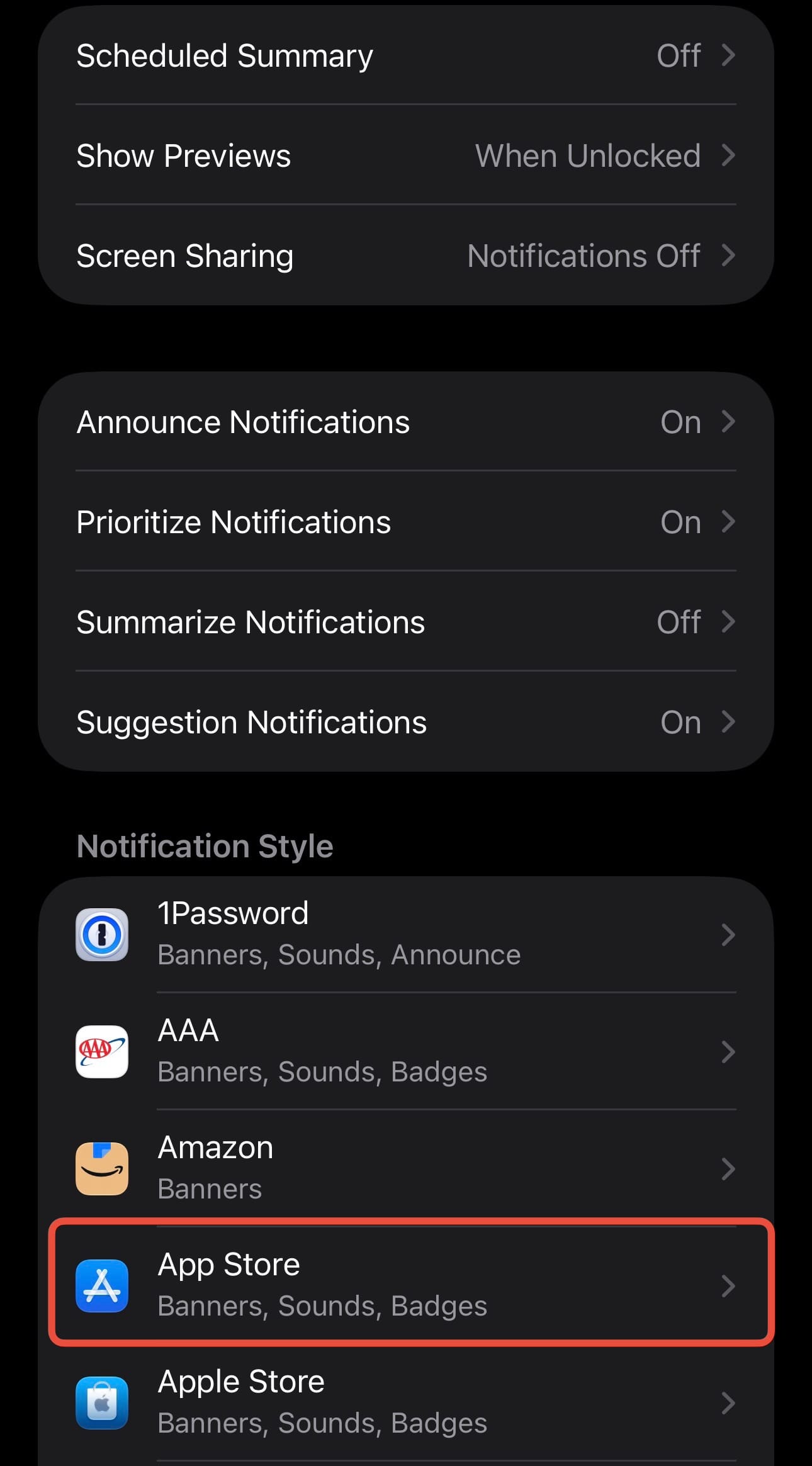
Scroll down to the app that’s driving you crazy and tap on it
Toggle off Allow Notifications to turn off all notifications for this app
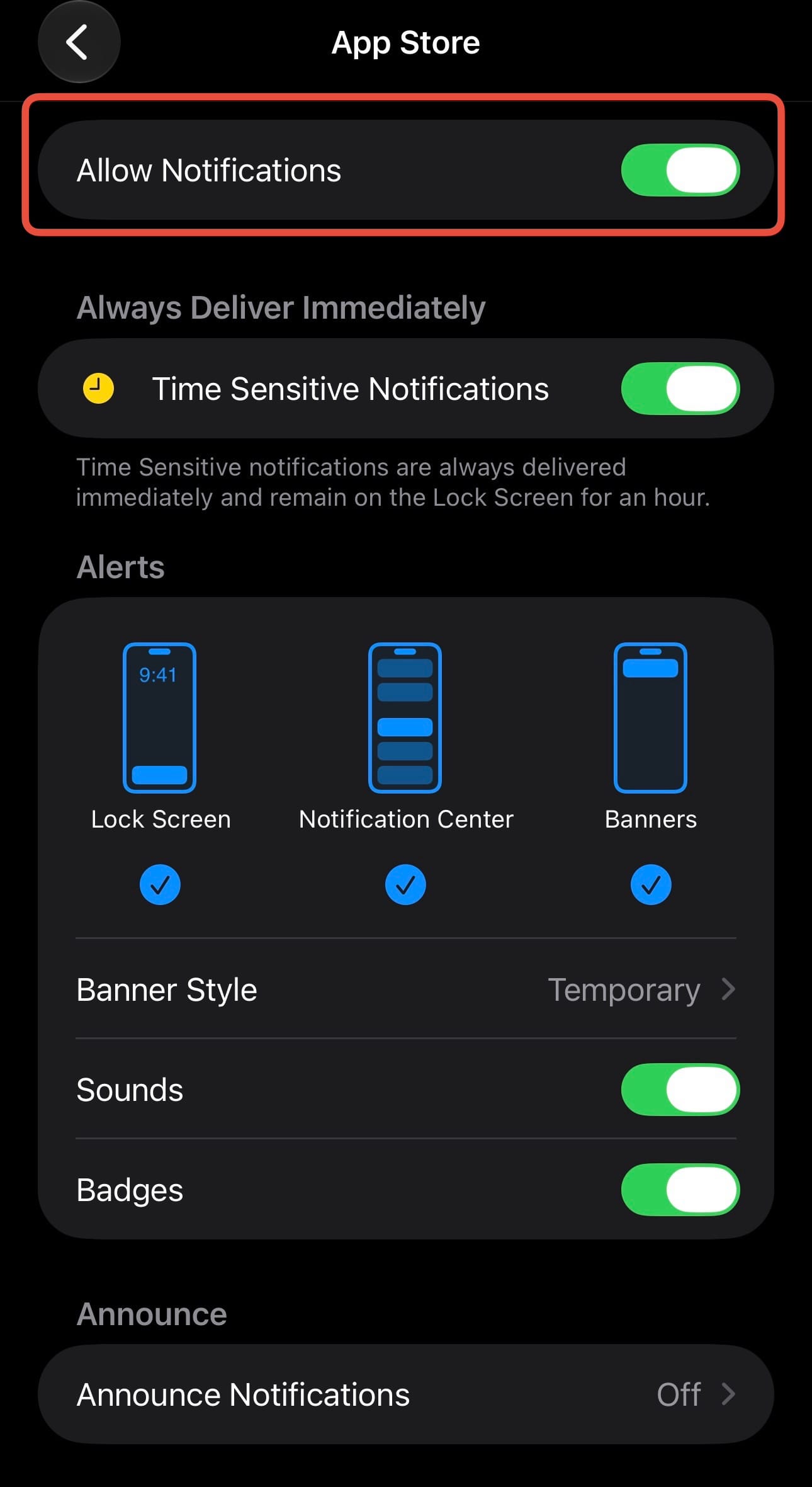
You Can also adjust how they appear (like turning off the Lock Screen banner so they only show up when you pull down your Notification Center).
Quick Tips for Managing the Noise:
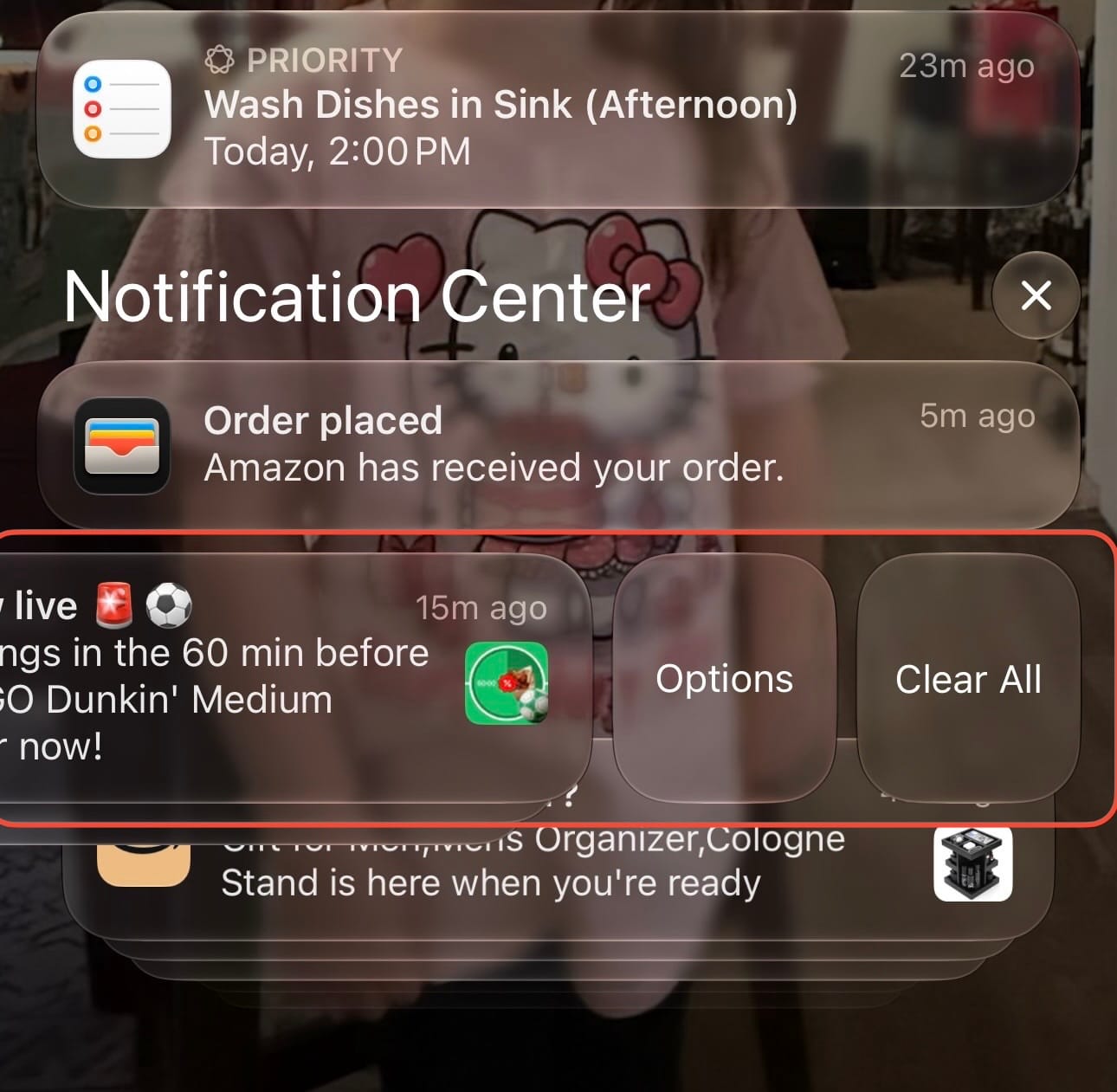
The "Swipe Left" Trick: When an annoying notification pops up on your Lock Screen, swipe left on it and tap Options. You can instantly mute it for an hour, mute it for the day, or turn it off completely without digging through your settings.
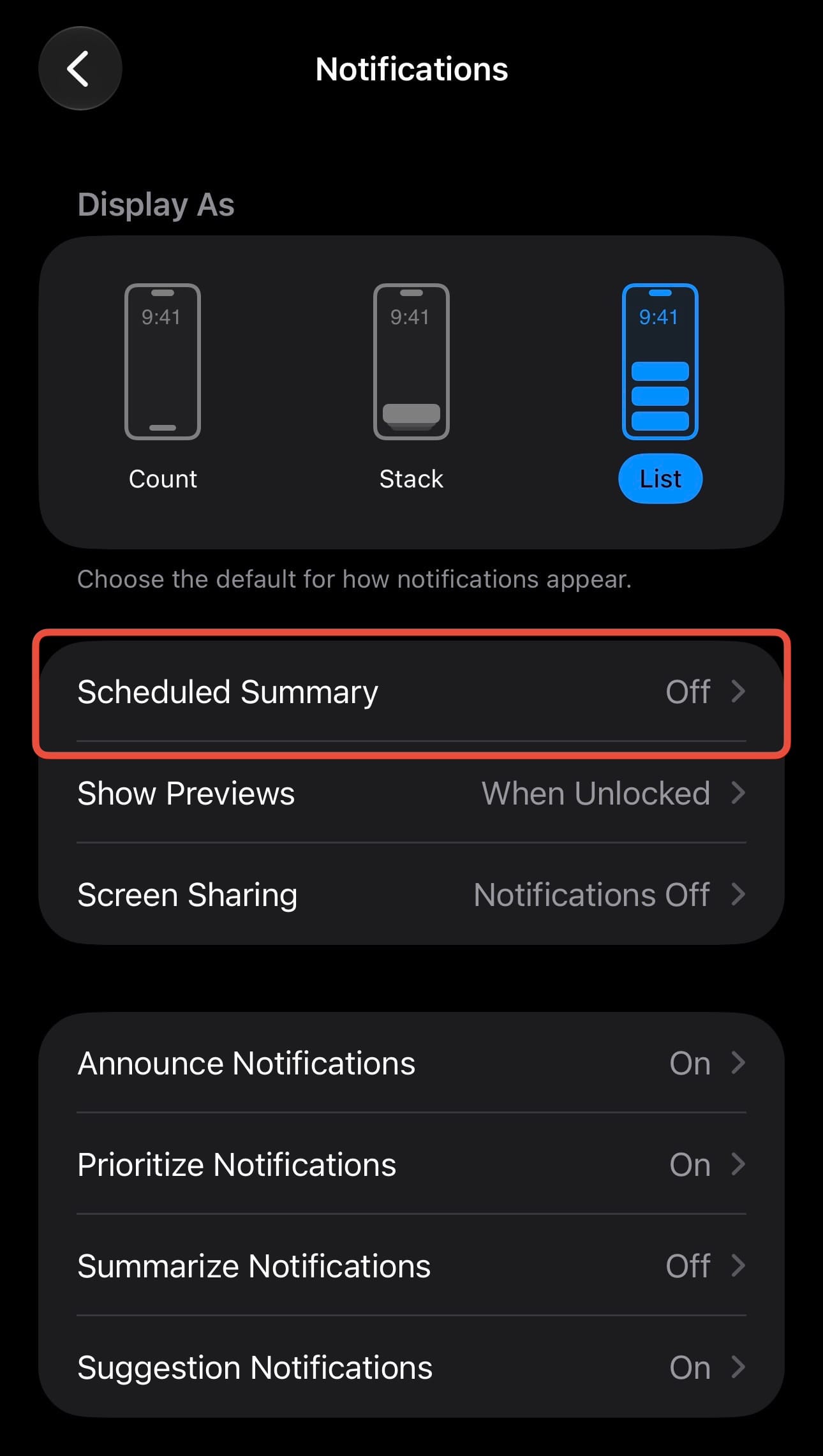
Use Scheduled Summary: For apps you care about but don't need right now (like news or social media), turn on Scheduled Summary in your Notification settings. This bundles them up and delivers them at a time you choose—like your lunch break or after work.
Be Ruthless: If an app sends you a marketing push notification even once, turn it off. You don't owe them your attention.
Take five minutes today to silence the worst offenders. Your sanity will thank you!